
Manage views

Manage global views from Settings, then Views ( /settings/views (opens in new tab) ). Process and client views are managed from their scoped Views areas.
Who this is for
Section titled “Who this is for”Agency team members who maintain view names, access, organization, or lifecycle. Requires View Layouts. Renaming, visibility, and organization require Edit Layouts. Deleting requires Delete Layouts.
Before you begin
Section titled “Before you begin”- Confirm the view’s Global, Client, or Process scope.
- Review the audience before changing visibility.
- Make sure a view is no longer needed before deleting it.
Find management actions
Section titled “Find management actions”The settings list shows each view’s name, scope, updated date, created date, and creator. Use search, folders, or the Global-only control to narrow the list.
Open More actions on a view for:
- Edit View
- View Settings
- Duplicate
- Delete
Rename a view
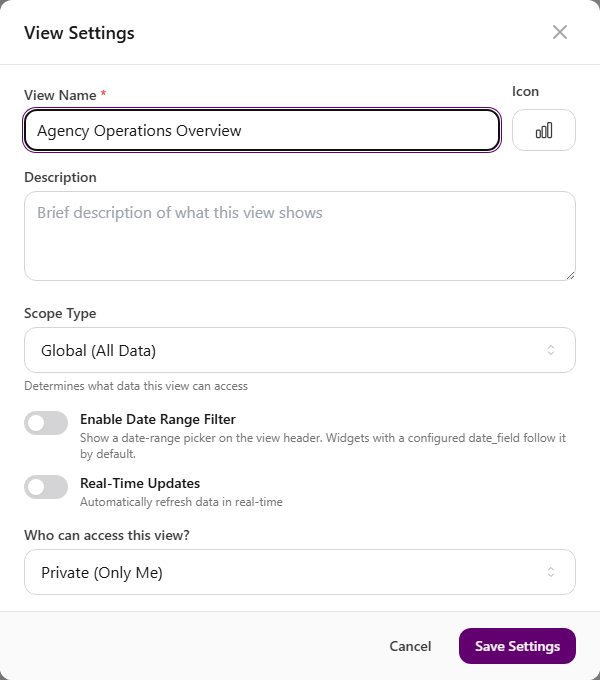
Section titled “Rename a view”- Open the view and select Entity Settings in the builder header, or choose View Settings from More actions.
- Change View Name.
- Optionally update the icon or description.
- Select Save Settings.
Change visibility
Section titled “Change visibility”In View Settings, choose Who can access this view?:
| Option | Audience shown in the live settings |
|---|---|
| Private (Only Me) | Only you |
| Shared (Selected Users/Roles) | The selected internal audience |
| Public (Everyone in agency) | Everyone in the agency |
Select Save Settings after changing visibility. Open the view from Views ( /views (opens in new tab) ) to confirm that it appears for the intended audience.
Duplicate and organize views
Section titled “Duplicate and organize views”- Choose Duplicate, review the default Copy of view name name in the dialog, then select Duplicate View.
- Select Add Folder to organize related views.
- Use the list selection controls and Move to Folder to reorganize several items together.
- The team-facing Views library can display views as cards or a list and sort them by update date, creation date, or name.
Delete a view
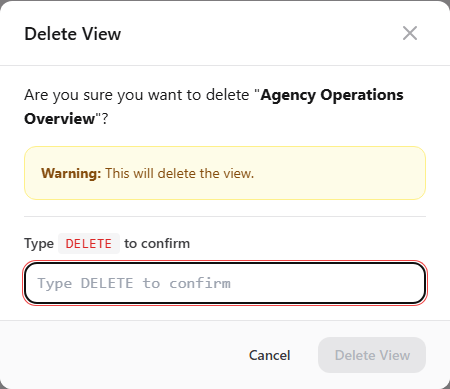
Section titled “Delete a view”-
Open More actions for the view.
-
Select Delete.
-
Review the view name in the confirmation.
-
Type
DELETE. -
Select Delete View.
View full size
Deleting removes the view and its configuration from the list. This action should be treated as permanent.
Expected result
Section titled “Expected result”- Saved name, icon, description, and visibility changes appear when the view is reopened.
- Duplicated and moved views appear under the expected name and folder.
- A deleted view no longer appears in the settings list or team-facing library.
Troubleshooting
Section titled “Troubleshooting”| Symptom | Likely cause | What to do |
|---|---|---|
| More actions is missing | You lack Edit Layouts or Delete Layouts | Ask a workspace owner to grant the matching Layouts permission |
| Rename does not appear in the list | Settings were not saved or the list is stale | Select Save Settings, return to the list, and refresh |
| A teammate cannot find the view | Visibility or scope does not include their context | Review Who can access this view? and the view scope |
| Delete View stays disabled | Confirmation text does not exactly match | Type DELETE in uppercase |
| View is hard to find | Search, folder, or Global-only filter excludes it | Clear search, show all scopes, and check its folder |
Related articles
 Concept Views and dashboards overview Understand how AgencyTitan views combine tables, Kanban boards, calendars, charts, and metrics into scoped dashboards and work surfaces.
  How-to Create a view Choose a global, client, or process scope, create the view, and add table, Kanban, calendar, chart, or metric blocks in the builder.
  How-to Filter and sort view data Configure per-widget filters, condition groups, sorting, limits, and view-level date filtering in a dashboard.