
Tickets overview

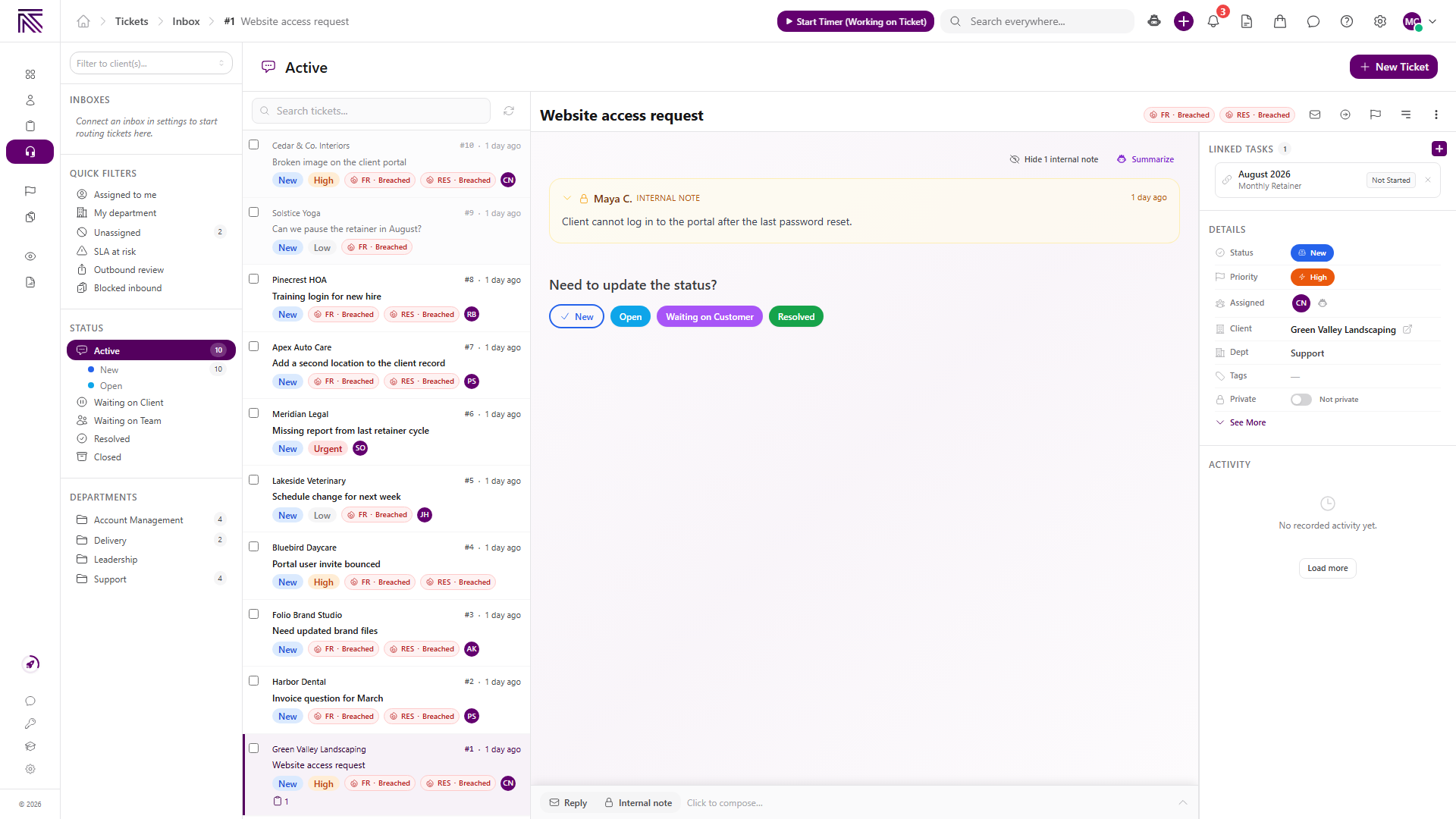
The Tickets area brings customer requests into one inbox so your agency can triage, reply, assign ownership, and track each request to resolution. Ticket settings control how new messages enter AgencyTitan and how your team responds consistently.
Four parts of tickets
Section titled “Four parts of tickets”| Part | What it is |
|---|---|
| Inbox | The workspace for finding tickets by inbox, quick filter, status, department, client, or search. |
| Conversation | The message thread, customer replies, and internal notes for one ticket. |
| Details | The ticket’s status, priority, assignees, client, department, tags, privacy, SLA information, and activity. |
| Ticket settings | Inboxes, ticket statuses, SLA defaults, lifecycle rules, routing rules, reply templates, and assignment behavior. |
Open Tickets to work with requests already in AgencyTitan. Open Settings, then Tickets, when you need to control intake and shared defaults.
From intake to resolution
Section titled “From intake to resolution”- A connected inbox, client portal request, or team member creates a ticket.
- Intake routing can send a new email ticket to a destination inbox.
- Inbox defaults and assignment rules help establish the department and owner.
- A team member reviews the conversation, sends a reply, or adds an internal note.
- Status and SLA information show what needs attention and what has been resolved.
Tickets can link to a client and to related tasks. See Clients overview and Core Concepts for how those records fit together.
Guides in this category
Section titled “Guides in this category” Guide Find and work tickets Use inboxes, quick filters, statuses, departments, client filters, and search to find the next ticket to work.
  How-to Reply to a ticket Send a customer reply, add recipients and attachments, use a template, or leave an internal note.
  Guide Assign and update a ticket Change status, priority, assignees, client, department, tags, privacy, and inbox from the ticket view.
  How-to Set up a ticket inbox Connect an email or SMS channel and configure visibility, defaults, intake, and outbound behavior.
  How-to Create intake routing rules Route brand-new email tickets by sender, subject, known-client match, and arrival inbox.
  How-to Create reply templates Build shared canned responses that team members can insert from the ticket composer.
 Related articles
 Concept Core Concepts Learn the AgencyTitan product model: workspace, clients, tasks, tickets, escalations, chat, SOPs, training, views, automations, programs, and settings.
  Concept Clients overview Understand the Clients list, client record anatomy, Client Profile templates, Info Sheets, notes, programs, tasks, and tickets.
  Concept Tasks & processes overview Understand how task types, process definitions, stages, fields, layouts, assignments, and tasks fit together.
  Concept Escalations overview Understand Escalations, how they differ from tickets and tasks, and how the inbox, statuses, and linked records fit together.
  Concept Chat overview Understand Chat, conversation types, and how internal messages differ from tickets and the client portal.