
Configure Kanban and calendar views

Use a Kanban Board to group records into columns. Use a Calendar when the important question is when records start, are due, or reach another date field.
Who this is for
Section titled “Who this is for”Agency team members who build visual work queues or date-based dashboards. Requires View Layouts and Edit Layouts.
Before you begin
Section titled “Before you begin”- Create a view and add a section. See Create a view.
- For Kanban, choose the record source and field whose values should become columns.
- For calendar, identify at least one record date field to display.
Add a Kanban board
Section titled “Add a Kanban board”-
Open the view in the builder from Settings, then Views ( /settings/views (opens in new tab) ).
-
Drag Kanban Board from Data into a section.
-
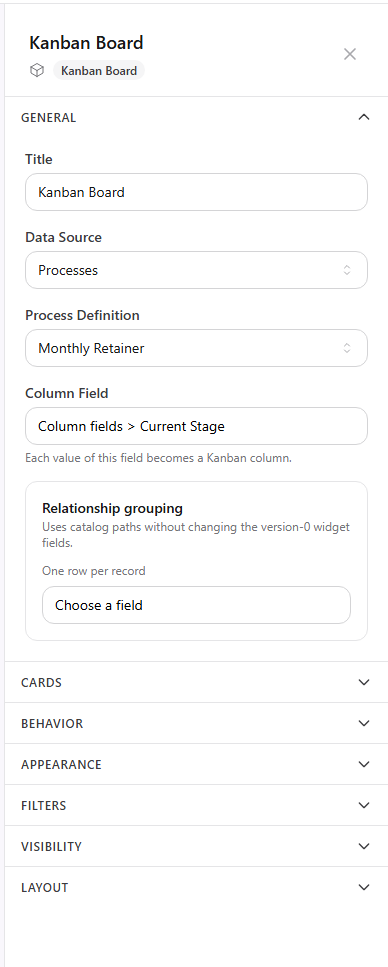
Select the board and expand General.
-
Enter a title.
-
Choose Data Source.
-
When using process data, choose Process Definition.
-
Choose Column Field. Each value of this field becomes a Kanban column.
View full size
Configure Kanban cards and behavior
Section titled “Configure Kanban cards and behavior”- Under Cards, choose a title field and optional subtitle field. Turn on badges when cards should show priority or status.
- Under Behavior, configure Enable drag & drop, Enable search, and optional swimlanes.
- Under Filters, narrow the board by supported process status, client, or assignee conditions. Stage selection is controlled by Column Field.
- Under Appearance, adjust how the board is displayed.
- Under Date Filtering, choose a date field when the board should follow the view-level date picker.
Select Save Draft after the configuration is complete.
Add a calendar
Section titled “Add a calendar”-
Drag Calendar from Data into a section.
-
Select the calendar.
-
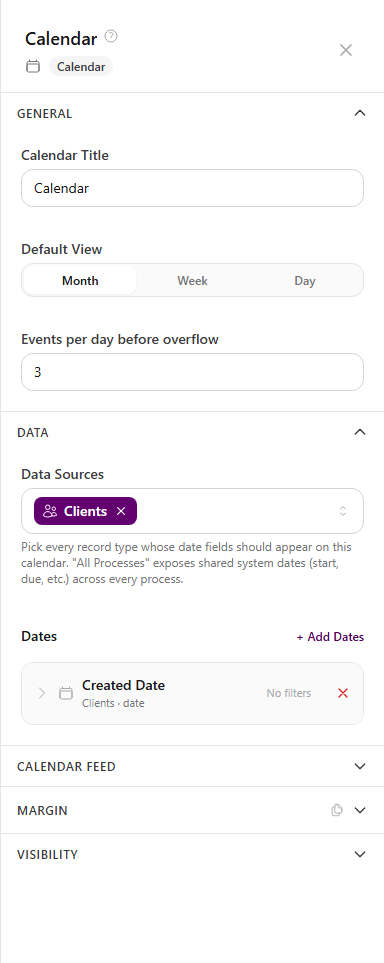
Under General, enter Calendar Title.
-
Choose Month, Week, or Day as the default view.
-
Set Events per day before overflow.
-
Under Data, choose one or more Data Sources.
-
Select Add Dates and choose the date fields that should create events.
-
Select Save Draft.
View full size
The calendar preview includes search, Month, Week, Day, and Today controls. It remains empty until at least one date field is selected.
Choose between Kanban and calendar
Section titled “Choose between Kanban and calendar”| Question | Better block |
|---|---|
| Which stage or status is each task in? | Kanban Board |
| What work is due this week? | Calendar |
| Which owner, client, or status should I focus on? | Kanban Board with filters |
| Which dates from several record types should I see together? | Calendar with multiple data sources and date fields |
Expected result
Section titled “Expected result”- The Kanban board groups matching records by the selected column field and shows the configured card details.
- The calendar opens in the selected default period and plots each configured date field.
- Blocks configured for date filtering respond to the view-level date picker.
Troubleshooting
Section titled “Troubleshooting”| Symptom | Likely cause | What to do |
|---|---|---|
| Kanban preview shows placeholders | Process definition or grouping field is incomplete | Choose the process definition and Column Field |
| Expected Kanban column is missing | Its value is absent from the selected field or excluded by filters | Review the grouping field and filters |
| Cards lack useful context | Title, subtitle, or badges are not configured | Open Cards and choose the display fields |
| Calendar is empty | No date field is selected | Select Add Dates and choose at least one field |
| Calendar shows the wrong period first | Default view does not match the intended use | Choose Month, Week, or Day under General |
| Too many events hide behind overflow | Per-day limit is too low | Increase Events per day before overflow |
Related articles
 Concept Views and dashboards overview Understand how AgencyTitan views combine tables, Kanban boards, calendars, charts, and metrics into scoped dashboards and work surfaces.
  How-to Create a view Choose a global, client, or process scope, create the view, and add table, Kanban, calendar, chart, or metric blocks in the builder.
  How-to Filter and sort view data Configure per-widget filters, condition groups, sorting, limits, and view-level date filtering in a dashboard.
  How-to Configure charts and metrics Add chart series, grouping, sorting, filters, and metric calculations to build a useful AgencyTitan dashboard.