
Tasks & processes overview

The Tasks area is where your team finds and completes repeatable work. Each task follows a task type that defines its stages, fields, and layout.
How task types and tasks relate
Section titled “How task types and tasks relate”AgencyTitan stores a task type as a process definition. The creation form calls it Process Type.
| Part | What it controls |
|---|---|
| Process definition | The reusable setup for one type of work, including its name, stages, fields, layouts, and defaults. |
| Stage | One step of the work. A stage can show its own fields, assignment, status, dates, and completion action. |
| Field and layout | The information a task stores and where that information appears while someone works a stage. |
| Task | One live item of work created from the process definition. It has its own values, assignments, status, and progress. |
For example, a client-request process can have Intake, Execution, and Communicate Request Completion stages. Each request created from it is a separate task.
Where to work and where to configure
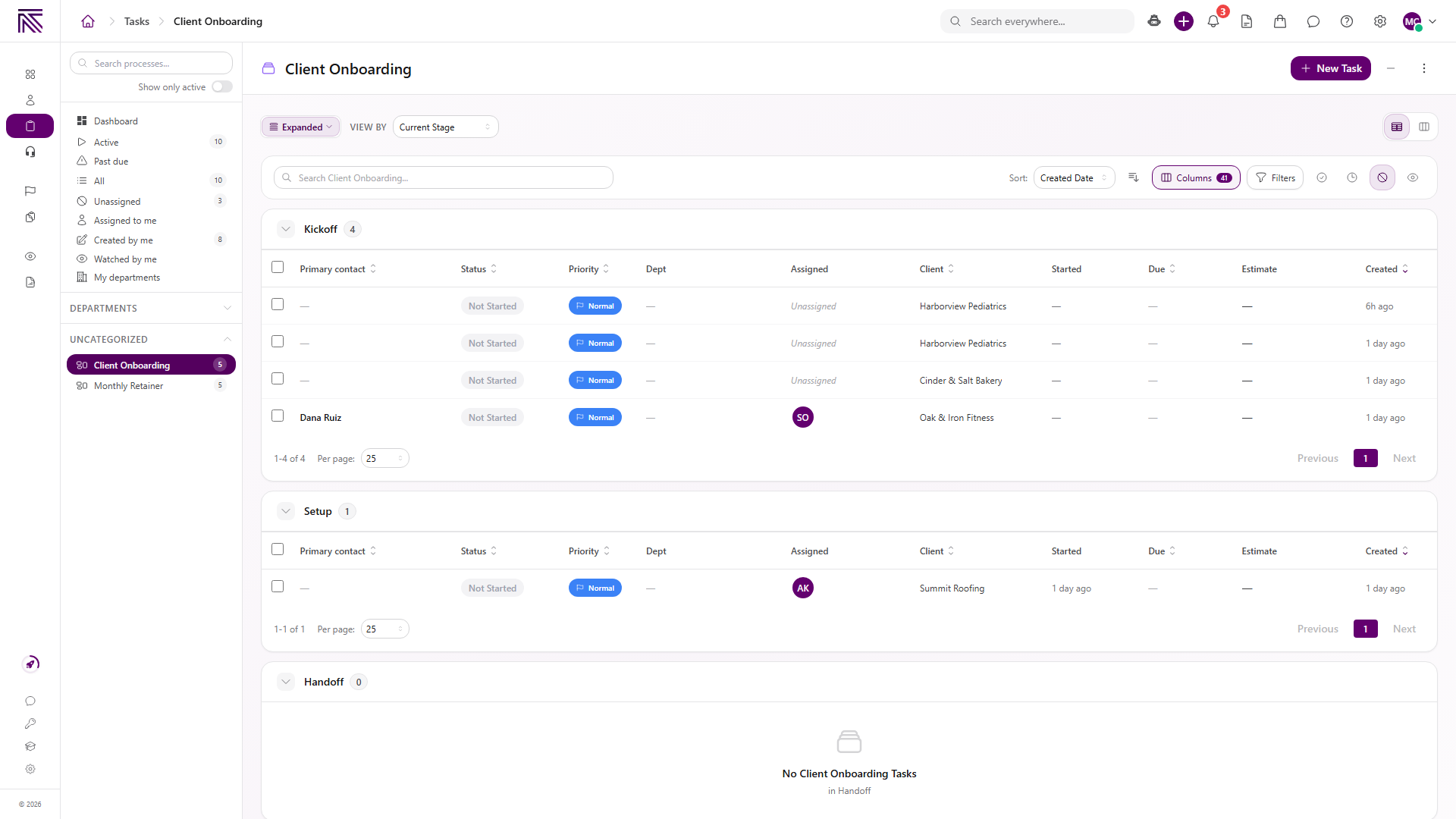
Section titled “Where to work and where to configure”- Open Tasks ( /tasks/active (opens in new tab) ) to create, find, assign, and work tasks.
- Select a process in the Tasks sidebar to see tasks of that type.
- Open a task to work its current stage and update its values.
- Open Settings, then Tasks & Processes, then Processes ( /settings/processes (opens in new tab) ) to review the reusable definitions, stages, fields, and layouts when you have access.
From creation to completion
Section titled “From creation to completion”- A team member selects New Task and chooses a Process Type.
- AgencyTitan creates the task from that process definition.
- The task opens in its current stage with the fields and layout configured for that stage.
- Team members enter values, update assignment and status, and use the stage’s completion action.
- The task moves through its remaining stages until the work is complete.
Tasks can link to a client when the process requires one. They can also link to tickets so customer conversations and delivery work remain connected.
Guides in this category
Section titled “Guides in this category” How-to Create a task Choose a process type, complete required fields, create the task, and assign its current stage.
  Guide Work a task Update the current stage, complete required work, and move through the configured stages.
  Concept Task fields and layouts Understand where task values live, where fields appear, and how edits are saved.
  How-to Link tasks to tickets Connect a task to an existing or new ticket and open either record from the other.
  Guide Find tasks Use queues, process views, search, filters, tables, and boards to find work.
 Related articles
 Concept Core Concepts Learn the AgencyTitan product model: workspace, clients, tasks, tickets, escalations, chat, SOPs, training, views, automations, programs, and settings.
  Concept Clients overview Understand the Clients list, client record anatomy, Client Profile templates, Info Sheets, notes, programs, tasks, and tickets.
  Concept Tickets overview How the Tickets inbox, ticket conversations, assignment, statuses, inboxes, routing rules, and reply templates fit together.
  Concept Escalations overview Understand Escalations, how they differ from tickets and tasks, and how the inbox, statuses, and linked records fit together.