
Work your day

Use My Day to work the plan for today, then complete each item in its task or ticket. The list on this page is the plan. The record is where the work lives.
Who this is for
Section titled “Who this is for”Agency team members who work assigned tasks and tickets. Opening My Day does not require a special Dashboard permission. Completing a task requires Edit Processes. Updating a ticket requires the same ticket permissions you use in Tickets.
Before you begin
Section titled “Before you begin”- Open My Day ( /dashboard/my (opens in new tab) ) and stay on Today.
- Confirm My Workday is the selected page tab.
- If No work schedule configured is showing, ask an administrator to add your work schedule so capacity matches your hours.
Start the next item
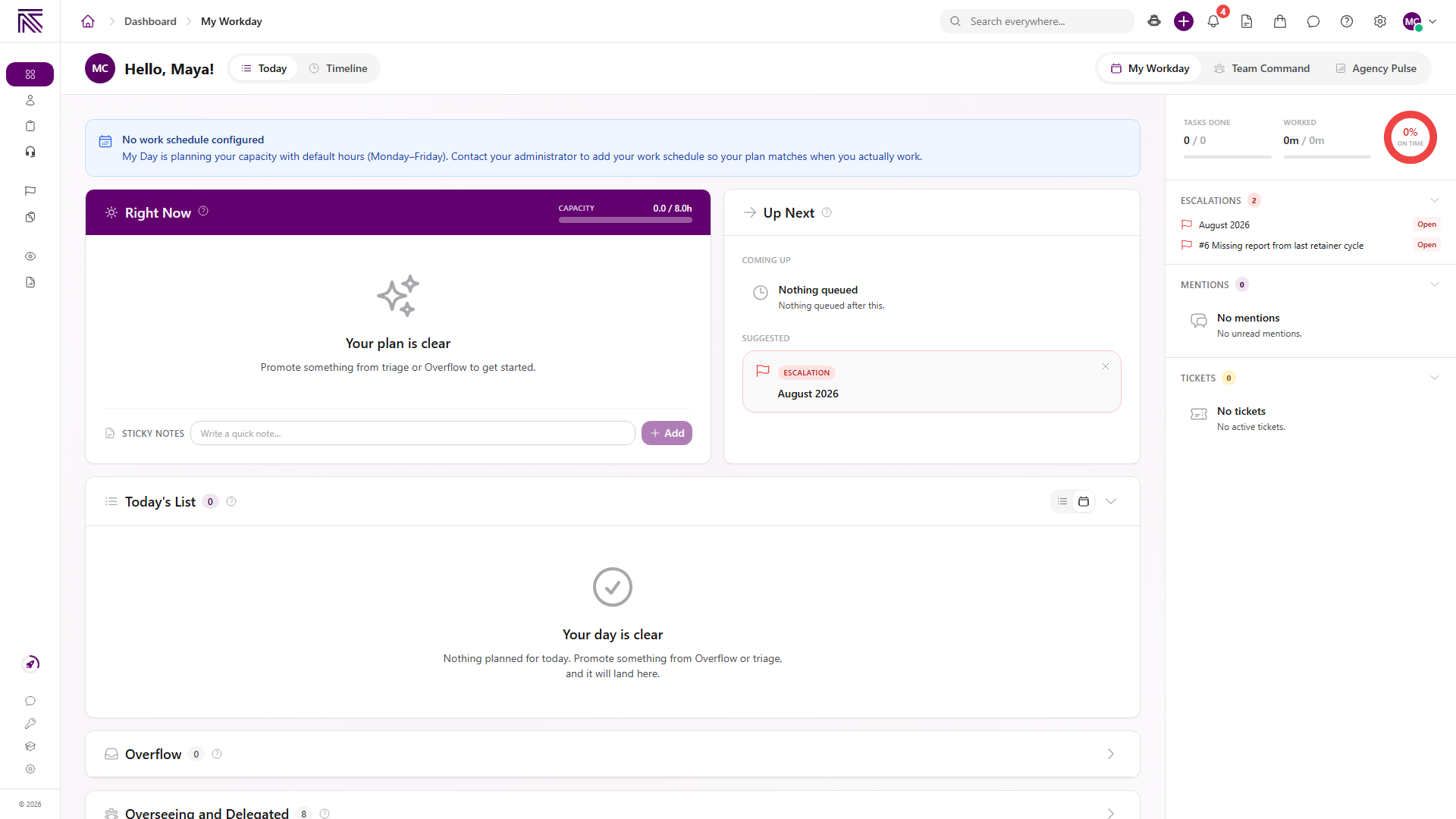
Section titled “Start the next item”- Look at Right Now.
- If the card shows Ready to start, select it to begin the first Today’s List item.
- If work is already running, use Pause, Resume, or Stop when those actions appear. Use Complete to finish the item in peek.
- If the card shows Up first, time tracks as you work that item. Select the title to open it.
- If the card shows Your plan is clear, promote something from Overflow or the side panel.
Previously returns to the last item you were tracking. Notes on the Right Now card stay with the current focus.
Capacity in the Right Now header compares planned Today time to your available window. Amber means the plan is over capacity. Day off appears when today is not a working day.
Work Today’s List
Section titled “Work Today’s List”- Find Today’s List.
- Use List view for a compact queue, or Day view to pace items across the work window.
- Drag the handle on a row to change order. The first work item is the start target when nothing is already running.
- Use Search today’s list… to find a row by title or details.
- Open the row menu to Open, Complete, Snooze 1 hour, Snooze tomorrow, or Snooze next week.
To insert a break or a new task:
- Hover a row and select the plus control on the left seam.
- Choose Add Break or Create Task.
- For a break, enter Length (minutes) in Add break. Breaks reserve time and are not timed as work. Use Edit break or Remove break from the row menu later.
Promote Overflow and triage
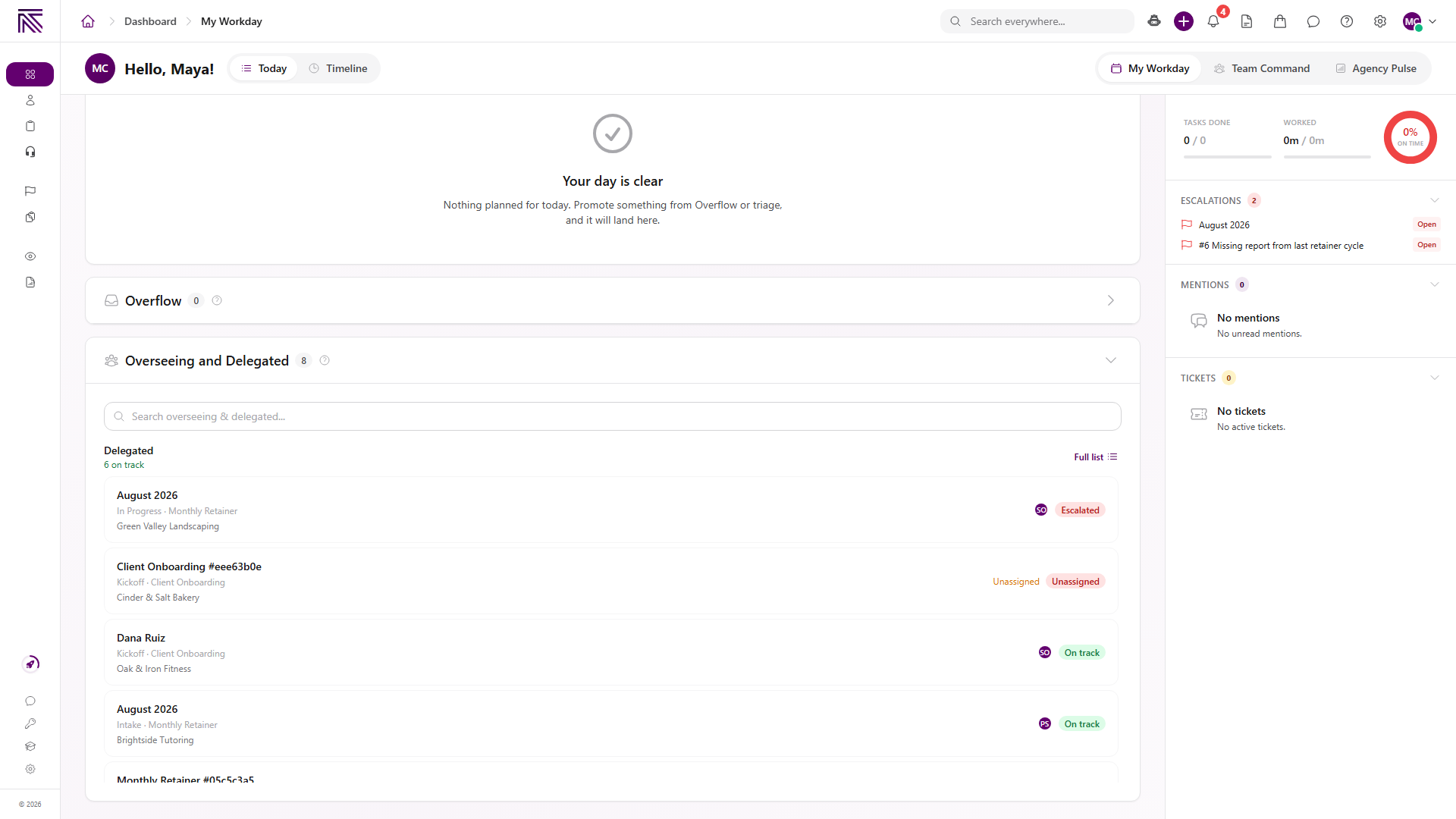
Section titled “Promote Overflow and triage”- Open Overflow if it is collapsed.
- Use Search overflow… when the list is long.
- Select Today on a row to put that item on Today’s List.
- In Up Next, select Coming up to preview the next planned item. Select Suggested to insert that triage pick at the front of Today, or dismiss it with the close control.
- In the side panel, open Escalations, Mentions, or Tickets. Select a row to handle it. Clear all removes mentions from My Day.
Watching is follow-only. Overseeing and Delegated is a management pulse for exceptions, not a full assignment list.
Review Timeline
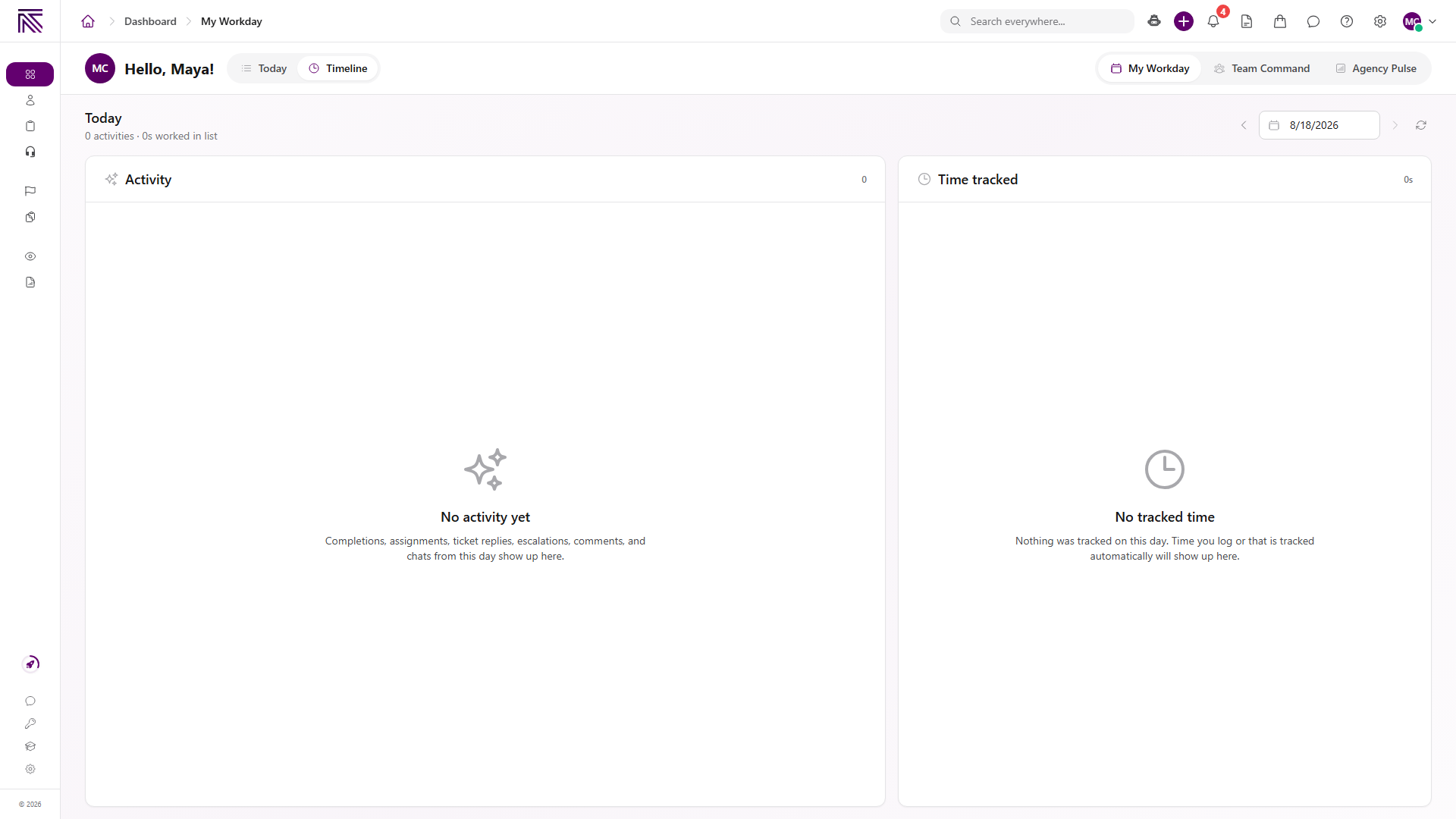
Section titled “Review Timeline”- Select Timeline.
- Confirm the date in the header. Use Previous day, the date control, Next day, or Today.
- Read Activity for completions, assignments, replies, comments, and other events from that date.
- Read Time tracked for time recorded that day.
Empty states are No activity yet and No tracked time.
Expected result
Section titled “Expected result”- Right Now shows the item you started or the next ready item.
- Today’s List order matches the sequence you set.
- Promoted Overflow rows appear on Today’s List and count toward capacity.
- Snoozed rows leave Today’s List for the chosen window.
- Timeline shows activity and tracked time for the date you selected.
Troubleshooting
Section titled “Troubleshooting”| Symptom | Likely cause | What to do |
|---|---|---|
| Today’s List shows Your day is clear | Nothing is planned for today | Select Today on an Overflow row, or open an item from Escalations, Mentions, or Tickets |
| Ready to start is missing | Time is tracking automatically, or nothing is on Today’s List | Use Up first when it appears, or add an item to Today’s List |
| Capacity is amber | Planned Today time is over the available window | Snooze or leave extra items in Overflow so the plan matches the day |
| No work schedule configured | Your work hours are not set | Ask an administrator to add your work schedule |
| Team Command or Agency Pulse is missing | Those tabs need Owner, Admin, or the matching Dashboard permission | Stay on My Workday, or ask an owner to grant the Dashboard permission |
| You cannot complete the item | The task or ticket permission is missing | Ask an owner to grant Edit Processes or the matching ticket permission |
Related articles
 Concept My Day overview Understand My Day, Today's List, Overflow, triage, and Timeline so you can plan and work assigned items for today.
  How-to Work a task Work the current stage, update task details, complete required fields, and move a task through its configured stages.
  How-to Find and work tickets Use inboxes, quick filters, statuses, departments, client filters, and search to find and open tickets in the Tickets inbox.
  Concept Welcome to AgencyTitan Sign in, find the main areas of the agency app, and choose a first-week path.
  Concept Escalations overview Understand Escalations, how they differ from tickets and tasks, and how the inbox, statuses, and linked records fit together.