
Create reply templates

Create Reply Templates for answers your team sends often. Active templates appear in the ticket composer so a team member can insert a complete response, personalize it, and send it without rewriting the same message.
Who this is for
Section titled “Who this is for”Agency team members who manage shared ticket responses. Requires Manage Ticket Settings.
Before you begin
Section titled “Before you begin”- Decide which customer question the template should answer.
- Write a short name that will be easy to find in the composer.
- Identify any ticket shortcodes the response should fill dynamically.
Open Reply Templates
Section titled “Open Reply Templates”-
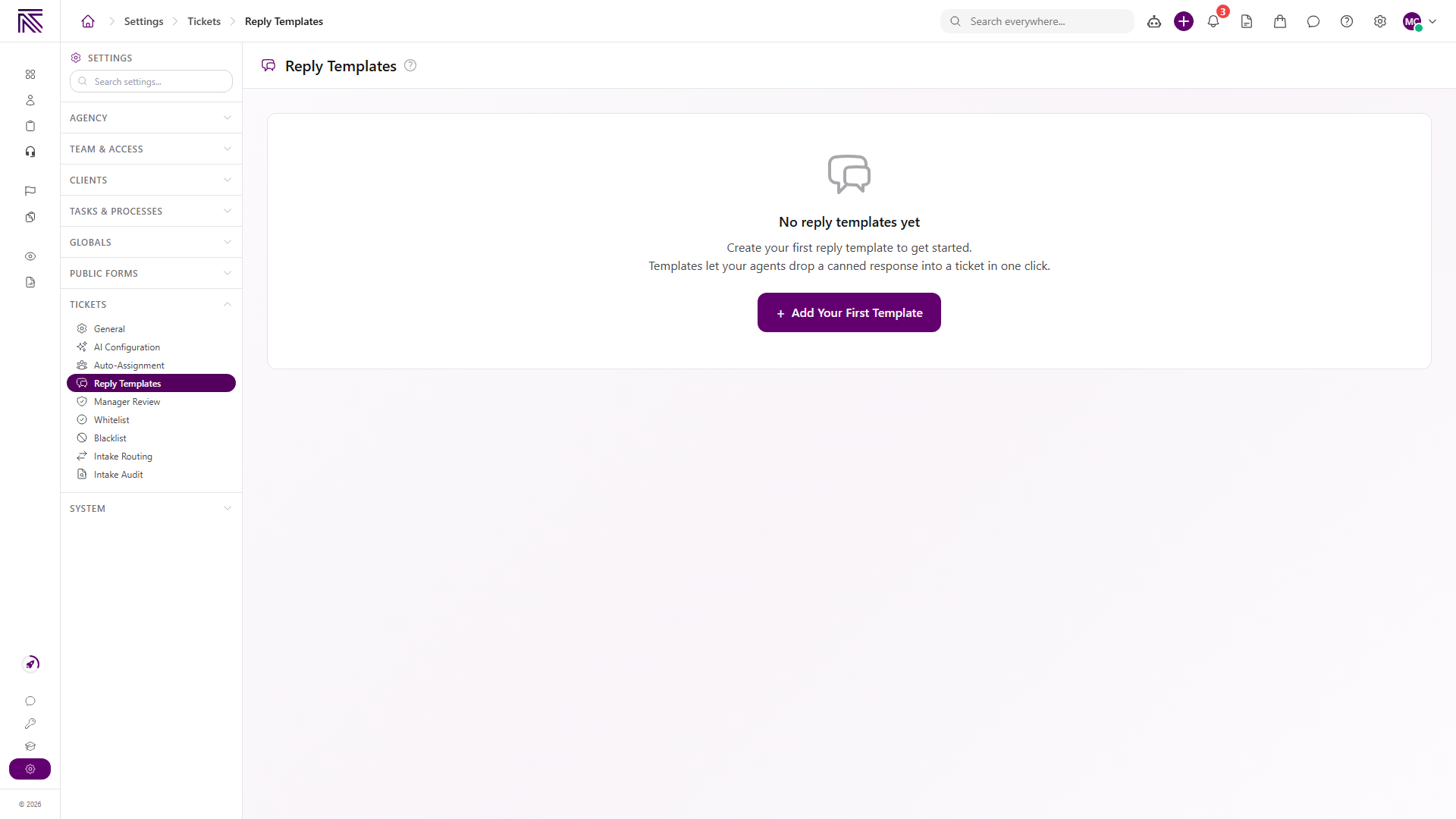
Open Settings, then Tickets, then Reply Templates ( /settings/tickets/reply-templates (opens in new tab) ).
-
When no templates exist, select Add Your First Template. Otherwise select Add template.
View full size
Create a template
Section titled “Create a template”-
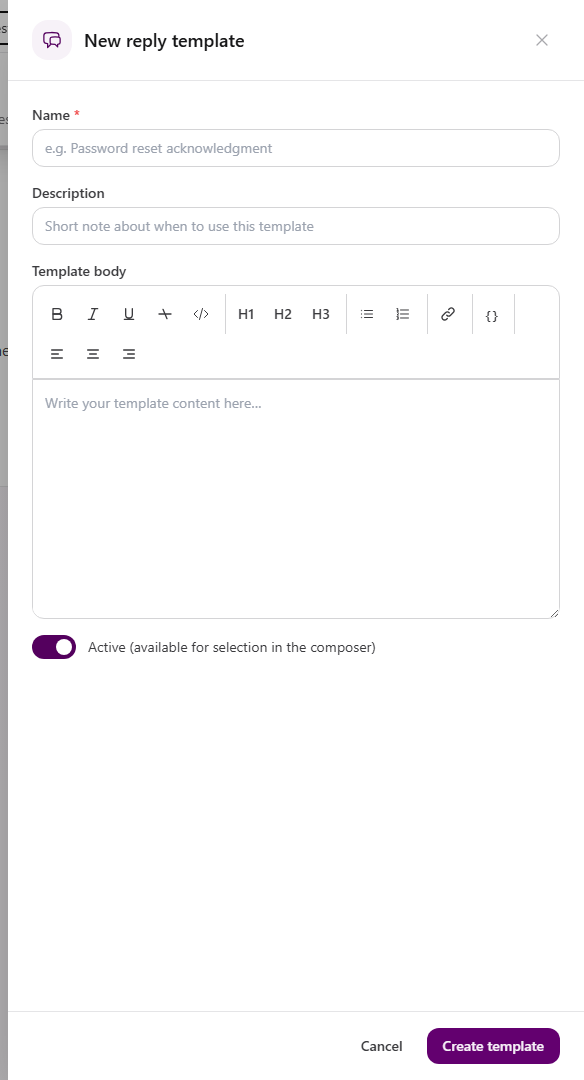
Enter Name. This is the label team members search for in the composer.
-
Optionally enter Description to explain when to use the template.
-
Write the response under Template body.
-
Use the editor controls to format headings, lists, links, alignment, and other content.
-
Insert supported ticket shortcodes when the response should include dynamic record values.
-
Keep Active (available for selection in the composer) on.
-
Select Create template.
View full size
Use a template in a reply
Section titled “Use a template in a reply”- Open a ticket and select Reply.
- Open the template picker in the composer.
- Search for the template by name or description.
- Select the template.
- Review the inserted text, confirm any shortcode values, and personalize the response.
- Add recipients and select Send.
See Reply to a ticket for the complete composer flow.
Edit, deactivate, or delete a template
Section titled “Edit, deactivate, or delete a template”- Edit a template when future replies need updated language.
- Turn off Active to remove it from the composer without deleting it.
- Delete a template to remove it from the library.
Changing or deleting a template does not recall messages already sent. The list shows template status, usage count, and updated date so you can identify stale or heavily used responses.
Expected result
Section titled “Expected result”- The template appears in Reply Templates.
- Active templates appear in the ticket composer.
- Selecting a template inserts its body into the current reply for review and editing.
Troubleshooting
Section titled “Troubleshooting”| Symptom | Likely cause | What to do |
|---|---|---|
| Add template is missing | You lack Manage Ticket Settings | Ask a workspace owner to review your ticket settings permission |
| Create template stays disabled | Name or template body is empty | Enter both required values |
| Template does not appear in the composer | It is inactive or search excludes it | Turn on Active and clear template search |
| Inserted text shows the wrong value | Shortcode context is missing or the shortcode is incorrect | Review the ticket data and replace or correct the shortcode |
| Old messages did not change after an edit | Expected behavior | Template edits affect future insertions only |
Related articles
 Concept Tickets overview How the Tickets inbox, ticket conversations, assignment, statuses, inboxes, routing rules, and reply templates fit together.
  How-to Reply to a ticket Send a customer reply from the ticket composer, add recipients and attachments, use a template, or leave an internal note.
  How-to Set up a ticket inbox Connect an email or SMS channel in ticket settings and configure visibility, defaults, inbound behavior, and outbound behavior.
  How-to Find and work tickets Use inboxes, quick filters, statuses, departments, client filters, and search to find and open tickets in the Tickets inbox.