
Invite a client portal user

Send a client portal invite so an external contact can sign in to this client’s portal. A client portal user is not the same as an internal agency team member assigned to the client; portal users are contacts outside your agency who need client portal access for one client record.
Who this is for
Section titled “Who this is for”Agency team members who grant portal contact access for a specific client. Requires View Client Portal Users to open the page and Invite Client Portal Users to send an invite. Without Invite Client Portal Users, Invite Portal User does not appear.
Before you begin
Section titled “Before you begin”- The client record already exists. See Create a client if you need to add one.
- You can open the client from Clients ( /clients (opens in new tab) ). See Find and organize clients for search and filters.
- You have the contact’s email address and name ready.
New to client vocabulary? See Clients overview.
Open Client Portal Users
Section titled “Open Client Portal Users”-
Open Clients and select a client name to open its record.
-
Select Users in the client navigation.
The Client Portal Users page opens. The subtitle reads Manage which portal users can access this client.
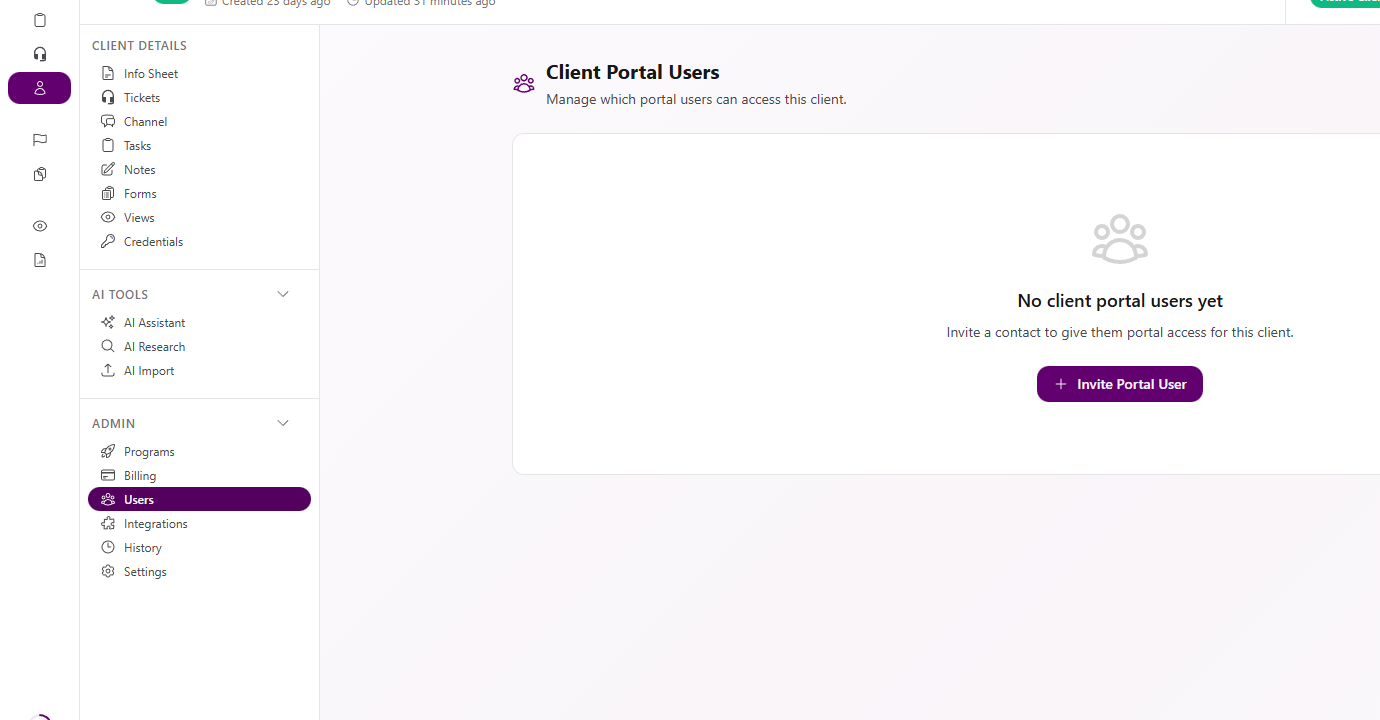
View full size When no portal users exist yet, the page shows No client portal users yet and Invite a contact to give them portal access for this client.
Open the invite form
Section titled “Open the invite form”When no portal users exist yet, select Invite Portal User in the empty state. If the list already has portal users, select Invite Portal User in the page header instead.
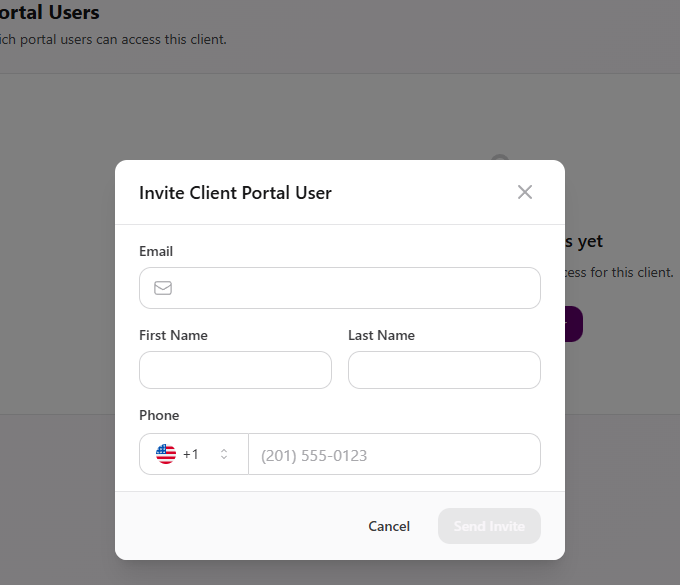
The Invite Client Portal User modal opens with Email, First Name, Last Name, and Phone. Cancel and Send Invite appear in the footer. Close the modal with Cancel, the X control, or Escape.
Complete the invite details
Section titled “Complete the invite details”- Enter Email for the contact who should receive the client login invite.
- Enter First Name and Last Name.
- Optionally enter Phone. The field shows a +1 country selector and accepts values such as
(201) 555-0123.
Send Invite stays disabled until Email, First Name, and Last Name are all non-empty. Phone is optional.
Send the invite
Section titled “Send the invite”Select Send Invite.
AgencyTitan sends the invitation to the contact’s email so they can set up portal access for this client.
Expected result
Section titled “Expected result”- The invite is sent for this client.
- After the page refreshes, the contact may appear in the Client Portal Users list with an Invited access badge until they finish portal setup and sign in.
- The contact receives portal access for this client only. They are not added as an internal agency team member.
Troubleshooting
Section titled “Troubleshooting”| Symptom | Likely cause | What to do |
|---|---|---|
| Users is missing or the page will not load | You lack View Client Portal Users | Ask a workspace owner to grant View Client Portal Users |
| Invite Portal User is missing | You lack Invite Client Portal Users | Ask a workspace owner to grant Invite Client Portal Users |
| Send Invite stays disabled | Email, First Name, or Last Name is empty | Fill all three fields. Phone is optional |
| You need to invite an agency employee instead | Wrong path | Use Settings → Team & Access → Users ( /settings/agency/users (opens in new tab) ) for internal team members, not Client Portal Users |
| Invite Failed | Invalid email, duplicate invite, or a temporary error | Check the email address and try again. Contact support if the error persists |
Related articles
 Concept Client portal Understand how the signed-in client portal gives external contacts access to shared client work, tickets, billing history, and account areas.
  How-to Invite your team Invite agency teammates from Users so they can sign in to the agency app. This is not a client portal invite.
  Concept Clients overview Understand the Clients list, client record anatomy, Client Profile templates, Info Sheets, notes, programs, tasks, and tickets.
  How-to Create a client Add a client record from the Clients list using Client Name, Client Profile, and any agency-required fields.
  Concept Core Concepts Learn the AgencyTitan product model: workspace, clients, tasks, tickets, escalations, chat, SOPs, training, views, automations, programs, and settings.