
Escalations overview

An escalation flags a ticket, task, client, or client note that needs a higher-priority path. It is its own record. It does not replace the linked ticket or task.
Who this is for
Section titled “Who this is for”Agency team members who raise or work flagged issues. Opening Escalations requires Manage Escalations. If your access is limited to assigned escalations, the list shows only those you can act on. Owners, Admins, and users granted All access see the full inbox.
Raising an escalation from a ticket, task, or client uses Escalate… on that record. You do not need the Escalations page open to create one.
Open Escalations
Section titled “Open Escalations”- Sign in to the agency app.
- Open Escalations ( /escalations (opens in new tab) ).
- On a wide screen, the first open row opens in the detail pane. On a narrower screen, select a row to open it.
Breadcrumb: Dashboard, then Escalations, then the linked record name.
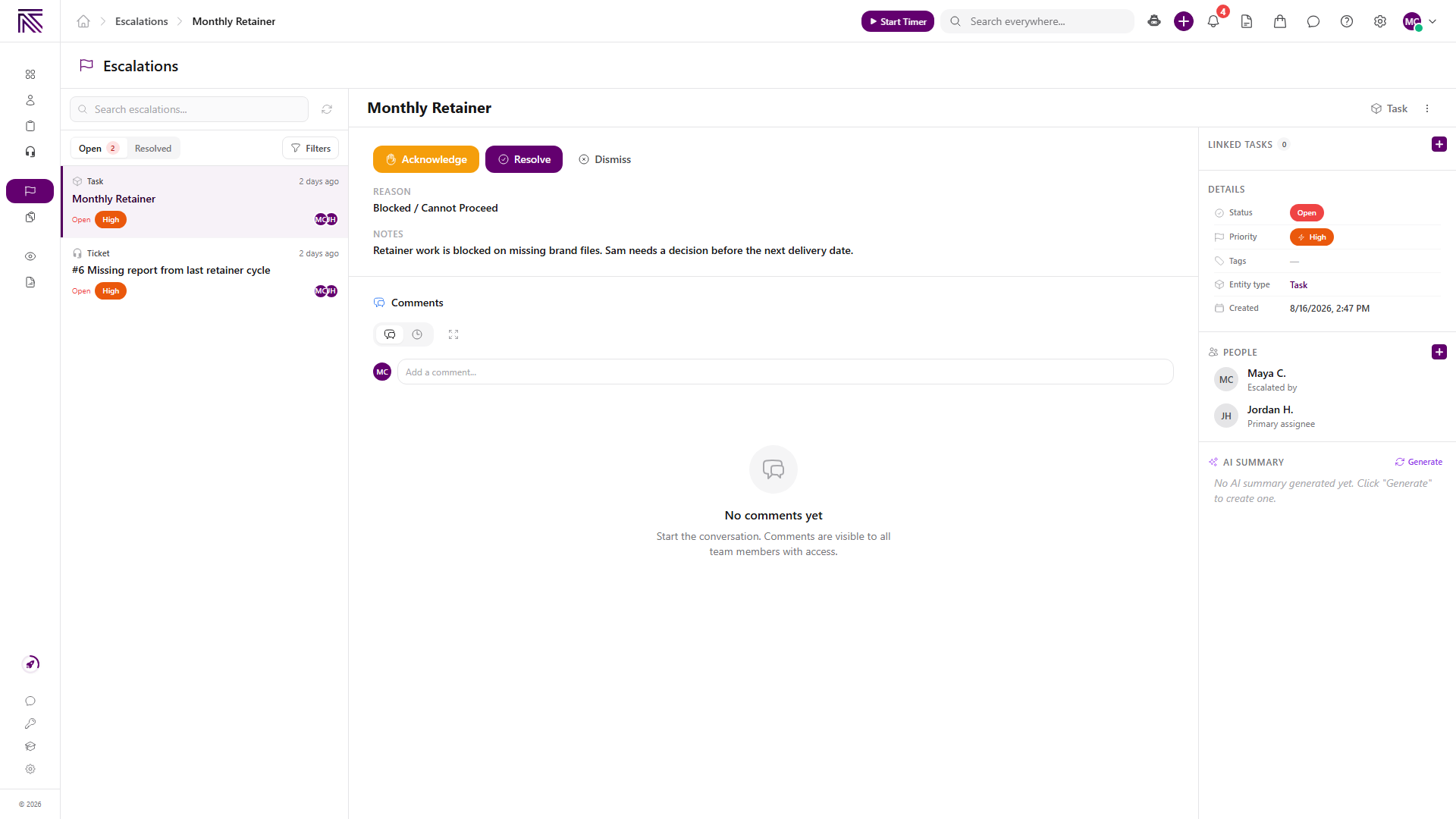
How the inbox is organized
Section titled “How the inbox is organized”| Area | What it is for |
|---|---|
| Search escalations… | Find a row by the linked record or details. |
| Open | Active escalations. The badge counts rows that are not closed. |
| Resolved | Closed escalations, including resolved and dismissed. |
| Filters | Narrow by user (when you can see all), priority, or type. |
| List | One card per escalation, with status, priority, and type. |
| Detail | Reason, notes, actions, comments, and the Details rail. |
Empty Open shows All caught up! and No active escalations require your attention. Empty Resolved shows No escalations found. A search miss shows No matching escalations.
Type filter values include Ticket, Task, Client, and Client Note. Task stage rows use Task (stage) or Task (substage).
Escalation versus ticket versus task
Section titled “Escalation versus ticket versus task”| Record | What it is |
|---|---|
| Ticket | An incoming request or conversation. Work it in Tickets. |
| Task | Planned work from a process type. Work it in Tasks. |
| Escalation | A flag on one of those records (or a client or note) when it needs a supervisor path. |
Complete the linked work on the ticket or task. Use the escalation to acknowledge, resolve, or dismiss the flag, add comments, and keep the right people involved.
How an escalation is created
Section titled “How an escalation is created”Someone selects Escalate… on a ticket, task, client, or client note. The modal is Escalate to Supervisor.
Required: Reason. Optional: Priority, Notes, and Screen Recording. Confirm with Escalate.
The form shows Escalating: and, when routing is known, Will be sent to:. The app assigns one primary assignee from your agency’s escalation settings.
Automations and ticket policy can also create an escalation. Those rows still appear in this inbox.
Default reasons include Blocked / Cannot Proceed, Overdue / Missing Deadline, Needs Supervisor Review, Need Clarification, Customer Complaint, Urgent Issue, and Other. Your agency can change labels in settings.
Statuses and actions
Section titled “Statuses and actions”Default statuses are Open, Acknowledged, Resolved, and Dismissed. Your agency can rename them. The Open tab still groups active rows. The Resolved tab groups closed rows.
On an active escalation you can act on:
- Acknowledge while it is still open. This marks that someone has taken it.
- Resolve when the issue is handled. Enter Resolution Notes.
- Dismiss when it should not stay open. Enter Reason for dismissal.
Closed rows keep Resolution or Dismissal Reason on the detail.
Details rail and linked record
Section titled “Details rail and linked record”The Details rail shows Status, Priority, Tags, Entity type, and Created. People lists Escalated by, Primary assignee, and other participants. Use Add person to open Add Participant. AI Summary can Generate or Refresh a summary. Recommendations appear when the submitter included them.
Select Open Ticket, Open Task, or the matching entity control to work the linked record. Escalations in the My Day side panel also open a peek. They do not add a Today’s List row. See Work your day.
Settings
Section titled “Settings”Statuses, priorities, tags, and routing defaults live in Settings, then Agency, then Escalations ( /settings/agency/escalations (opens in new tab) ). Opening that page requires settings access. Daily work stays on Escalations.
Guides in this category
Section titled “Guides in this category”Related articles
 Concept Welcome to AgencyTitan Sign in, find the main areas of the agency app, and choose a first-week path.
  How-to Work an escalation Find an escalation, acknowledge or close it, add people, comment, and open the linked ticket or task.
  Concept Tickets overview How the Tickets inbox, ticket conversations, assignment, statuses, inboxes, routing rules, and reply templates fit together.
  Concept Tasks & processes overview Understand how task types, process definitions, stages, fields, layouts, assignments, and tasks fit together.
  Concept My Day overview Understand My Day, Today's List, Overflow, triage, and Timeline so you can plan and work assigned items for today.