
Set up departments and levels

Create departments and levels before you invite Members. A department is a team. A level is the access band inside that team. Member access comes from the permissions granted to their assigned level, not from the Owner or Admin role.
Owner and Admin already have full product access. They do not need a department assignment to use the app.
Who this is for
Section titled “Who this is for”Owners and users with the Admin role who set up team structure. Opening Departments requires View Departments. Adding a department requires Create Departments. Adding levels and granting permissions requires Edit Departments. Assigning people to a level requires Manage Department Members.
Before you begin
Section titled “Before you begin”- You are signed in to the correct agency.
- Decide the teams you need, such as support, delivery, or account management.
- For each team, decide at least one level name, such as Agent or Lead.
Department levels are not the same as Owner, Admin, and Member. Those three are agency roles. See Core Concepts.
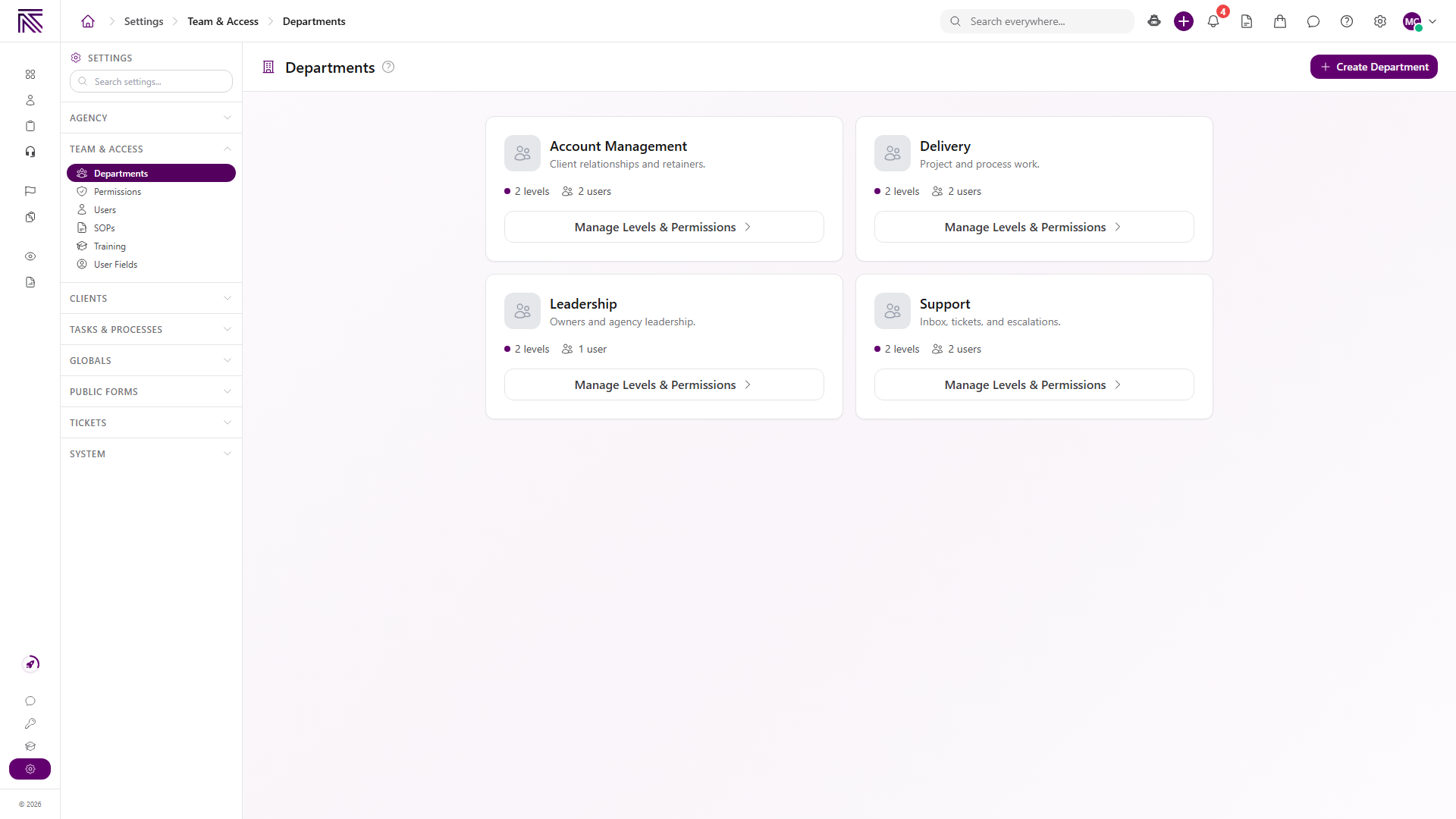
Open Departments
Section titled “Open Departments”- Open Settings, then Team & Access, then Departments ( /settings/agency/departments (opens in new tab) ).
- Confirm the page heading is Departments.
If the agency has no departments, the page says No departments yet. Use Create First Department in that empty state, or Create Department in the header.
Create a department
Section titled “Create a department”- Select Create Department.
- Enter Department Name. This field is required.
- Optionally enter Description, choose Icon, and set Department Color.
- Select Create Department.
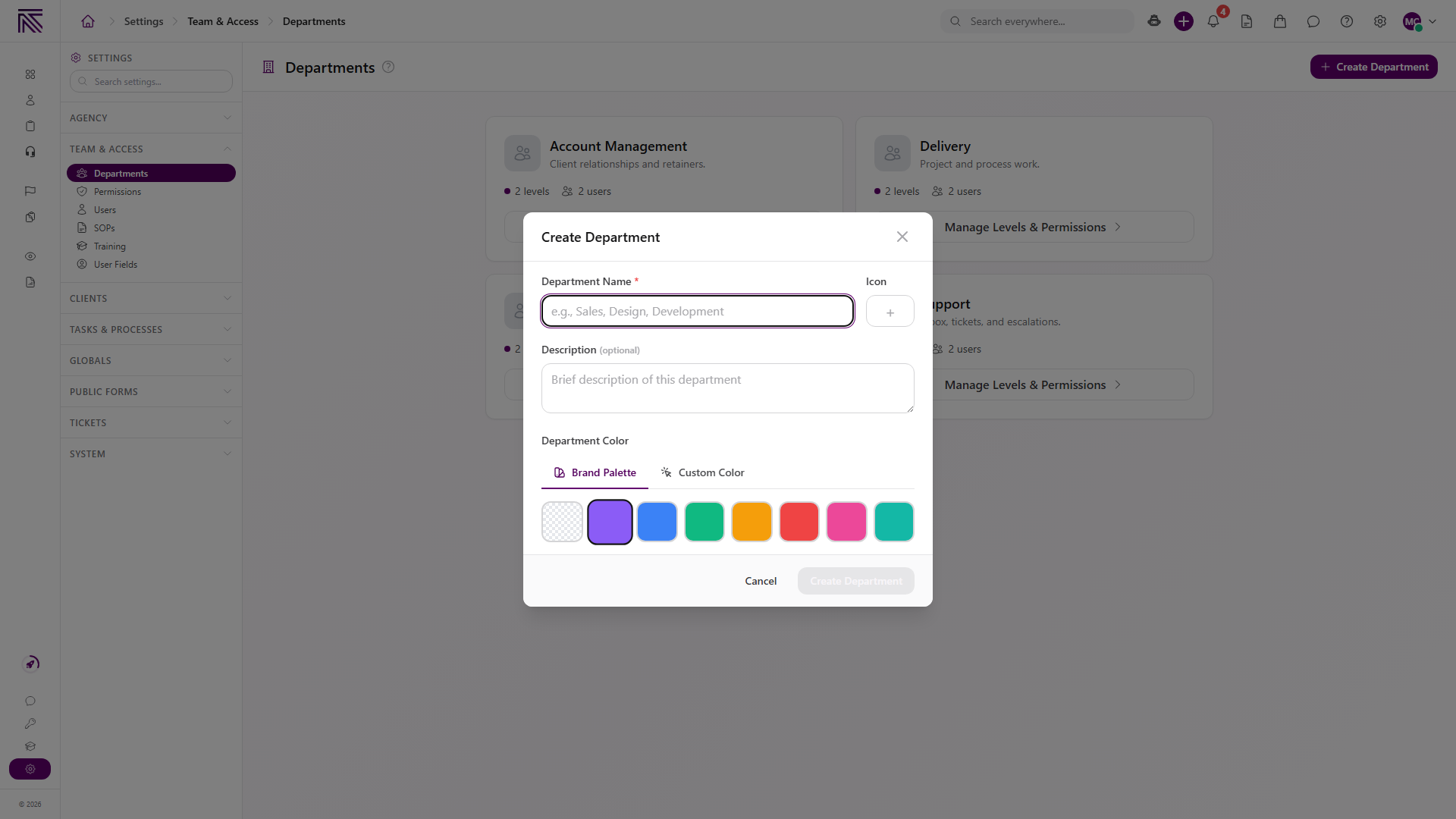
The new department appears as a card. Each card shows how many levels and users it has.
Add levels
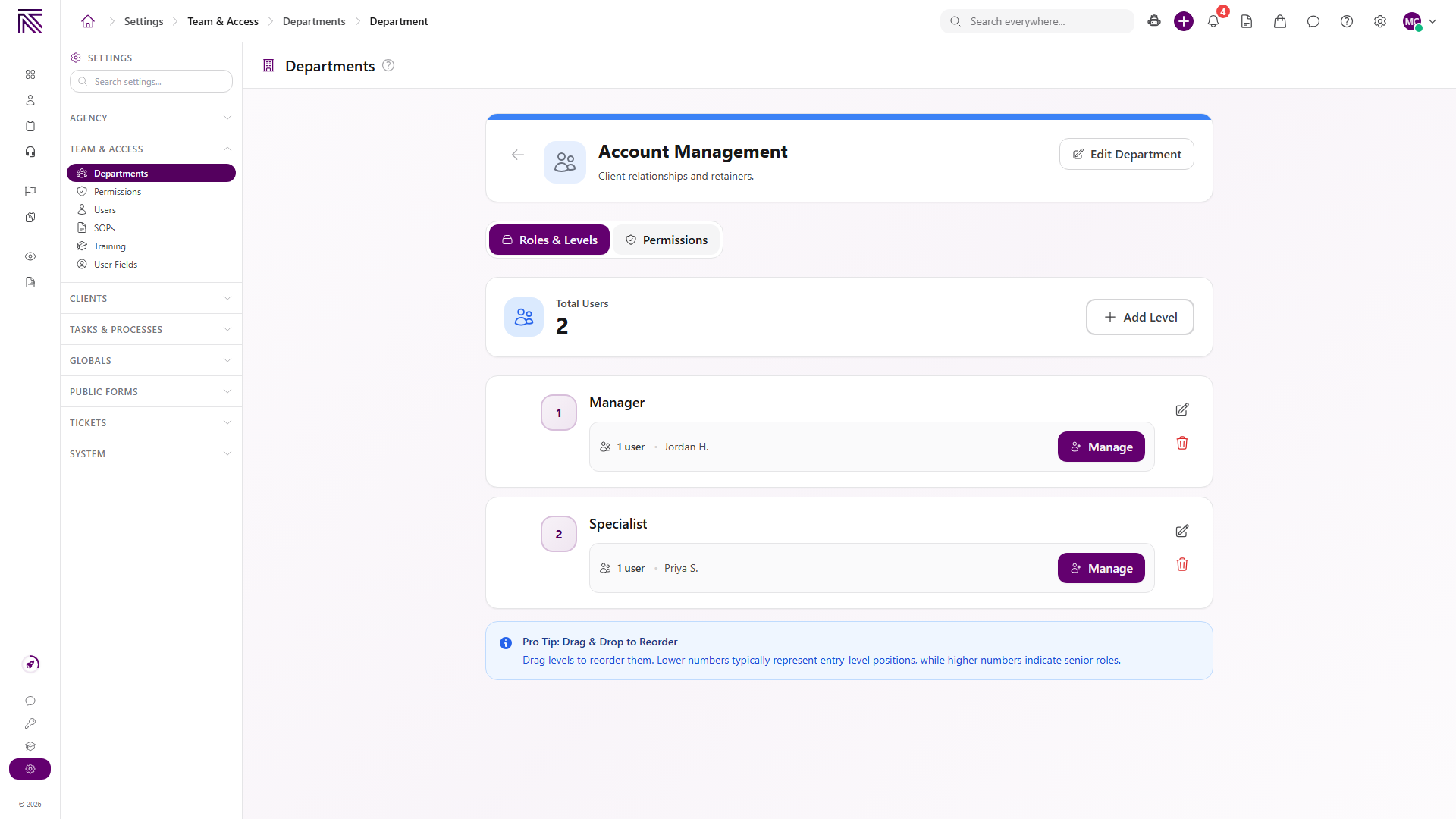
Section titled “Add levels”- On the department card, select Manage Levels & Permissions.
- Confirm the Roles & Levels tab is selected.
- Select Add Level. If the department has no levels, the empty state says No levels yet. Use Add Level there.
- Enter Level Name. This field is required.
- Optionally enter Description.
- Optionally enter Hourly Cost if you track department cost and have Edit Compensation.
- Select Add Level.
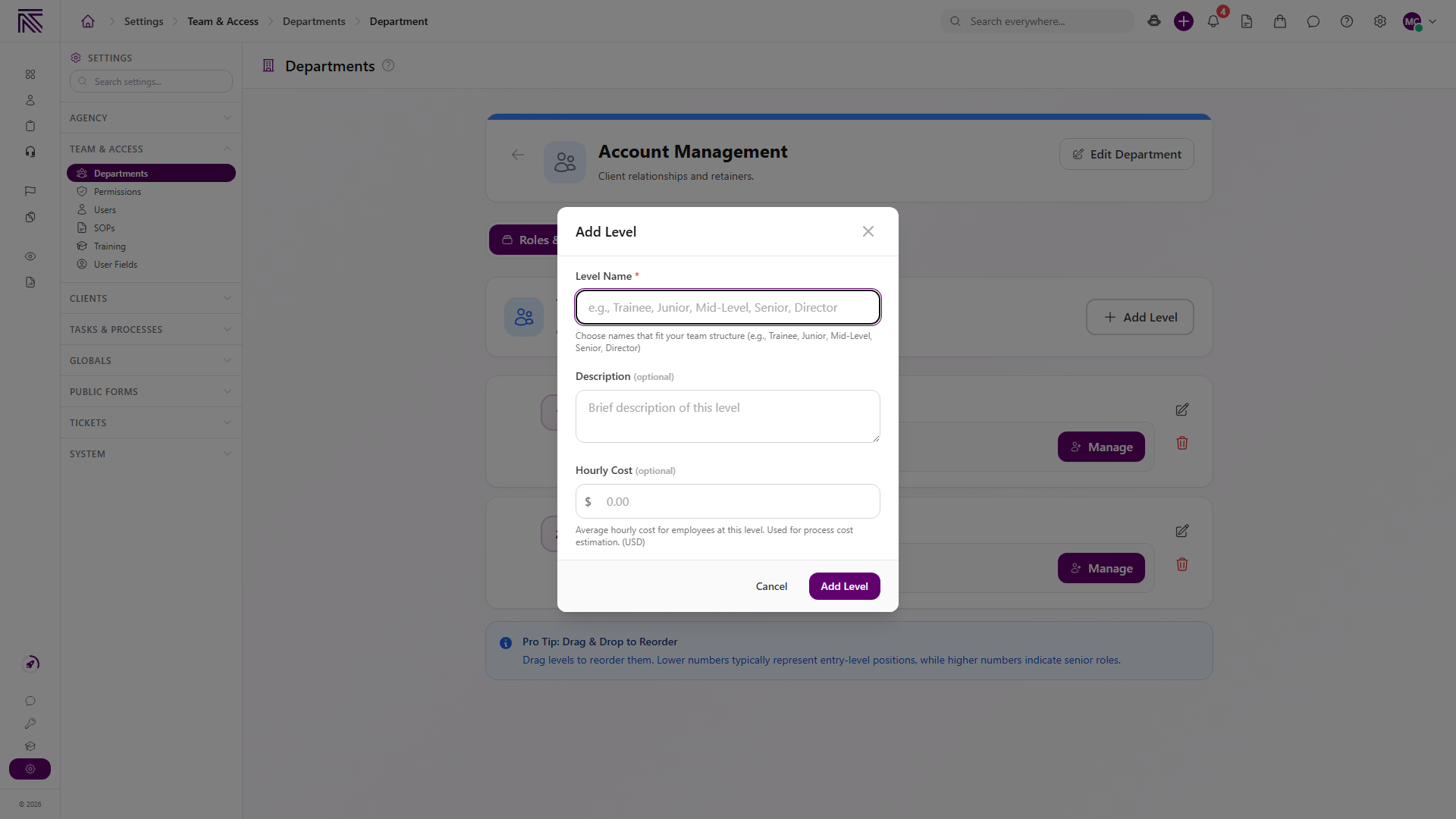
Add every level this department needs before you invite Members into it.
You can drag a level to change its order. Lower numbers are usually earlier in the path, such as Agent before Lead.
Grant permissions
Section titled “Grant permissions”- Select the Permissions tab.
- If you see No levels defined, return to Roles & Levels and add a level first.
- Use Search permissions (e.g. time tracking, inbox, PTO)… to find a permission, or expand a group such as Team Management.
- For each level column, turn on only the permissions that level should have.
- Where a row offers a scope, choose All data or Assigned only.
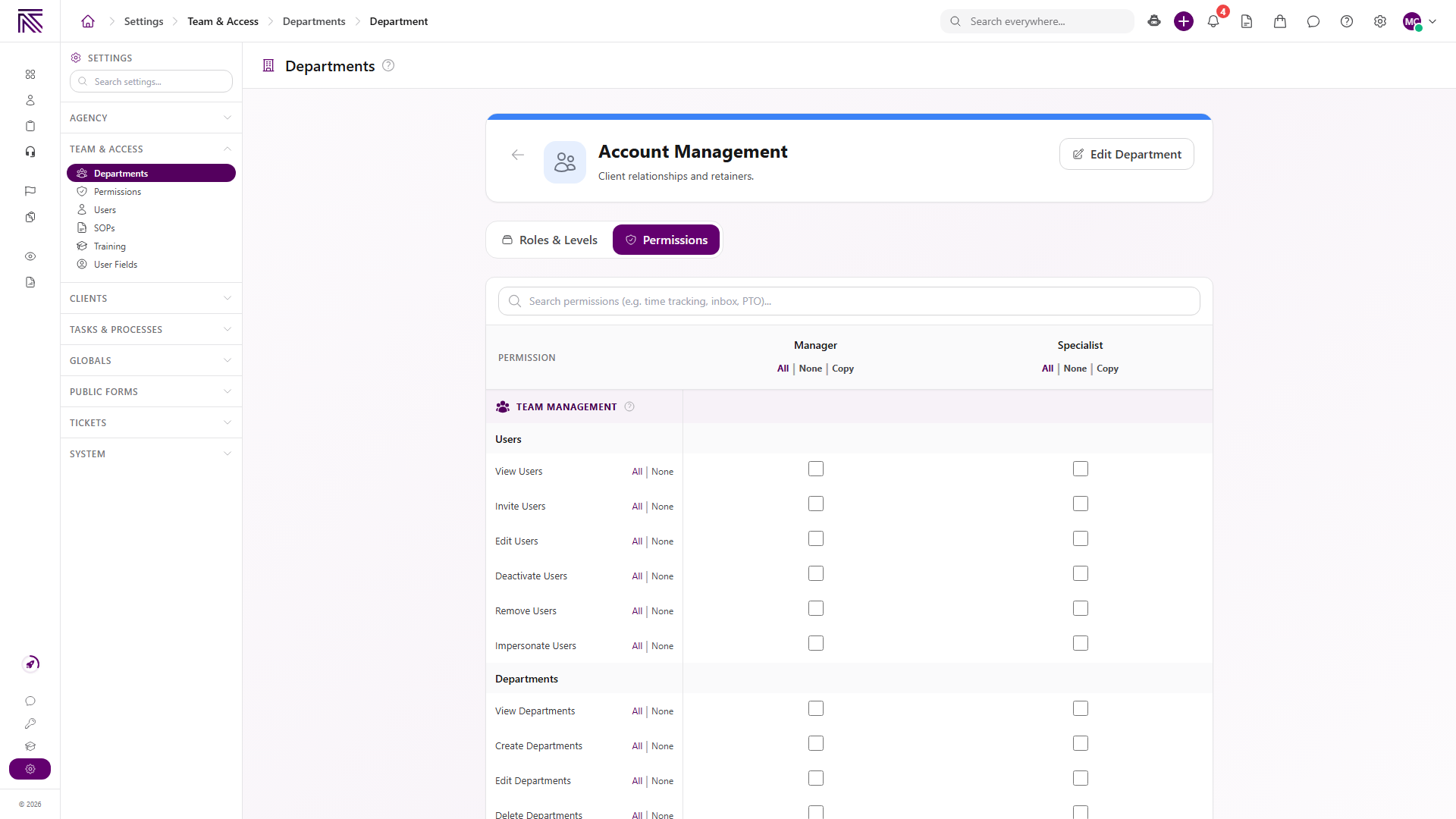
A grant applies to every user assigned to that level. Owners and Admins keep full access even when a department level does not include a permission.
Optional: copy permissions to another level
Section titled “Optional: copy permissions to another level”- In a level column, select Copy.
- In Copy Permissions, choose Copy To to apply this level to other levels, or Copy From to overwrite this level from another source.
- Select the destination or source levels.
- Select Copy Permissions.
Use this when two levels should start from the same baseline, then tighten or widen one of them.
Optional: add people already in the agency
Section titled “Optional: add people already in the agency”You can assign existing teammates from the department, or wait and assign them during invite. See Invite your team.
- On Roles & Levels, select Add Users on a level with no members, or Manage on a level that already has members.
- In Manage Users, under Add User to Level, choose the person.
- Optionally turn on Set as primary department for this user.
- Select Add User.
Expected result
Section titled “Expected result”- Departments lists each team you created.
- Each department has the levels you added.
- Each level grants only the permissions its members need.
- You can invite Members into those department levels.
Troubleshooting
Section titled “Troubleshooting”| Symptom | Likely cause | What to do |
|---|---|---|
| Departments is missing | You lack View Departments | Ask an Owner or Admin to grant View Departments |
| Create Department is missing | You lack Create Departments | Ask an Owner or Admin to grant Create Departments |
| Add Level is missing | You lack Edit Departments | Ask an Owner or Admin to grant Edit Departments |
| Permissions shows No levels defined | This department has no levels yet | Open Roles & Levels and select Add Level |
| Add Users or Manage is missing | You lack Manage Department Members | Ask an Owner or Admin to grant Manage Department Members |
| A Member cannot see a page or button | Their department level does not grant that permission | Open Permissions for that department and review the level |
| Delete stays unavailable for a level | Users are still assigned to it | Reassign those users, then delete the empty level |
Related articles
 How-to Invite your team Invite agency teammates from Users so they can sign in to the agency app. This is not a client portal invite.
  Concept Core Concepts Learn the AgencyTitan product model: workspace, clients, tasks, tickets, escalations, chat, SOPs, training, views, automations, programs, and settings.
  How-to Agency settings Update agency identity and branding, and understand how users, roles, departments, and department-level permissions work together.
  Concept Welcome to AgencyTitan Sign in, find the main areas of the agency app, and choose a first-week path.