
Core Concepts

AgencyTitan organizes agency work around a small set of connected records. This page defines those terms and how they fit together. For where to click on day one, see Welcome.
Who this is for
Section titled “Who this is for”Anyone who needs the shared vocabulary used across the agency app.
Workspace, roles, and permissions
Section titled “Workspace, roles, and permissions”Your workspace is one agency. It holds that agency’s users, clients, work, and settings. Data in one agency is not visible to another agency.
Owner and Administrator both have full product access. The differences are impersonation rank, who can remove an Owner, and that the agency must keep at least one Owner.
| Role | Access |
|---|---|
| Owner | Full agency access. Can impersonate Administrators and Members when Impersonate Users is granted. Can remove Administrators and Members. Cannot remove or demote the last remaining Owner. |
| Administrator | Same product access as Owner. Cannot impersonate an Owner. Cannot remove an Owner. |
| Member | Access granted through department levels and permissions. Cannot impersonate an Administrator or Owner, even when Impersonate Users is granted. |
Impersonation never goes up the role ladder: a lower role cannot impersonate a higher role.
Permissions use the names shown in Settings, then Team & Access, then Permissions. Examples include View Clients, Create Processes, Manage Ticket Settings, and View Layouts. A missing button usually means that permission is not granted.
Invite teammates, departments, levels, and permission grants live under Team & Access. Set departments and levels first, then invite Members. See Set up departments and levels and Agency settings.
Clients
Section titled “Clients”| Term | What it is |
|---|---|
| Client record | The live account for one business your agency serves. It holds status, contacts, tasks, tickets, notes, programs, files, and custom field values. |
| Client Profile | The reusable template that defines which fields and defaults apply when you create or edit clients of that type. |
| Info Sheet | The default page that opens when you select a client from the list. |
Creating a client picks a Client Profile and saves a new record. Open Clients ( /clients (opens in new tab) ) to find or add accounts.
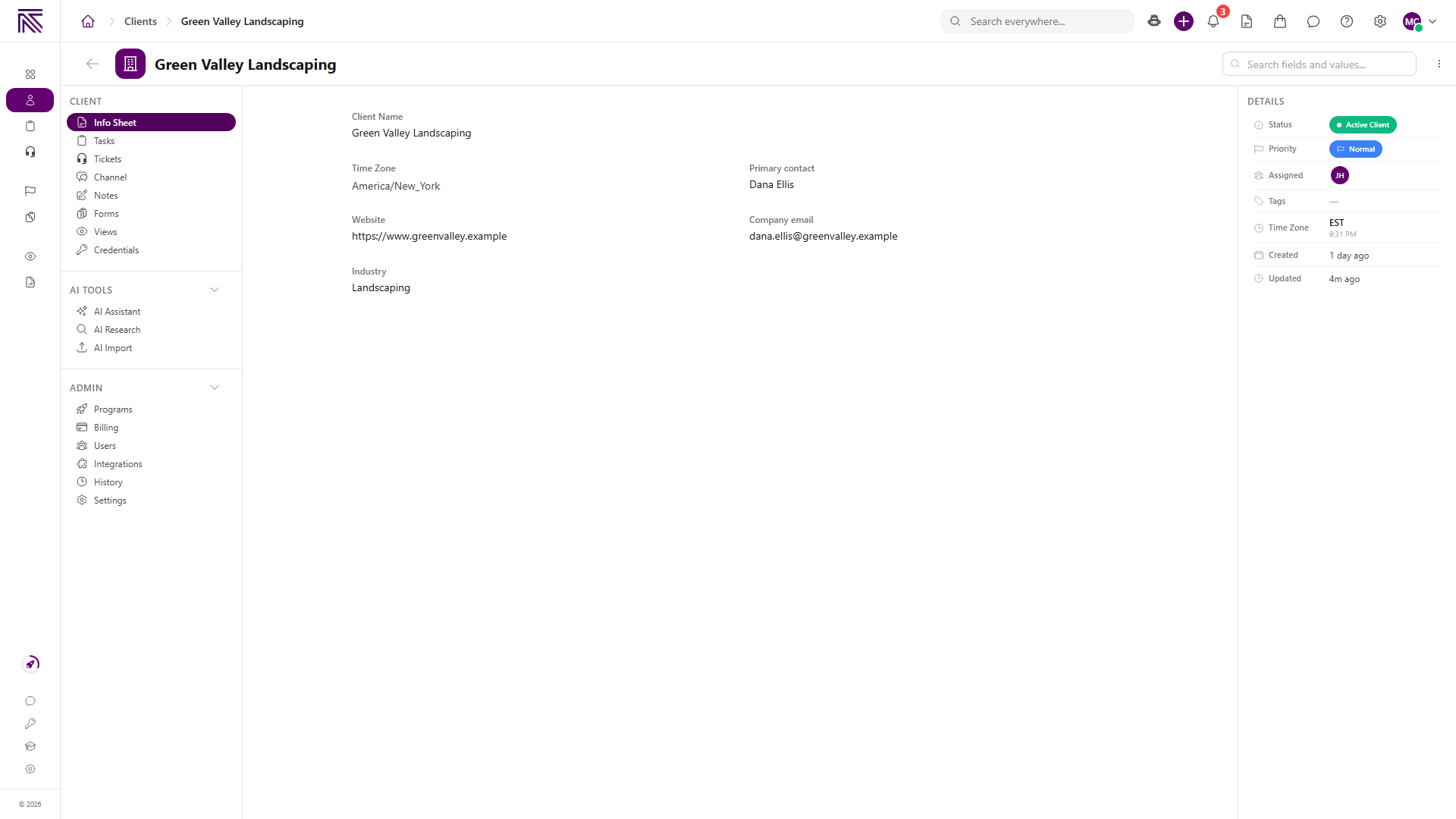
See Clients overview.
Client portal
Section titled “Client portal”The client portal is a separate signed-in surface for contacts outside your agency. It shows shared work and account areas only for client records linked to that contact.
Inviting a contact does not add them to your agency team and does not give them the agency app. Internal notes and other clients stay in the agency app.
See Client portal and Invite a client portal user.
Process definitions and tasks
Section titled “Process definitions and tasks”AgencyTitan stores a task type as a process definition. The task creation form calls it Process Type.
| Term | What it is |
|---|---|
| Process definition | The reusable setup for one type of work: stages, fields, layouts, and defaults. Configured in Settings. |
| Stage | One step of that work. A stage can have its own fields, assignment, status, dates, and completion action. |
| Task | One live item created from the process definition. It has its own values, assignment, status, dates, and progress. |
Changing a task updates that task. Changing the process definition changes the reusable setup used by later work. It does not merge every task into one shared record.
Open Tasks ( /tasks/active (opens in new tab) ) to create and work tasks. See Tasks & processes overview.
Tickets
Section titled “Tickets”A ticket is a request or conversation your team handles in the Tickets inbox ( /tickets/inbox (opens in new tab) ). A ticket can have a status, priority, assignees, client, department, tags, and SLA information based on your agency’s setup.
Tickets can arrive from a connected inbox, the client portal, or a team member. Inboxes, statuses, routing, reply templates, and SLA defaults live in ticket settings.
See Tickets overview.
Escalations
Section titled “Escalations”An escalation is a flag on a ticket, task, client, or client note that needs a higher-priority path. It is its own record. Work the linked ticket or task on that record, and use Escalations ( /escalations (opens in new tab) ) to acknowledge, resolve, or dismiss the flag.
Routing, statuses, priorities, and tags for escalations live in Settings, then Agency, then Escalations. See Escalations overview.
Chat ( /chat (opens in new tab) ) is internal messaging for your agency team. Use a named channel, a department or client conversation, or a direct message. Chat does not create a ticket. Client portal contacts cannot see Chat.
A client’s Channel tab is the same internal conversation as that client’s Chat row. See Chat overview.
SOPs and training
Section titled “SOPs and training”SOPs & Trainings ( /knowledge (opens in new tab) ) is where the team reads published procedures and completes courses. An SOP is how-to documentation. A course is a lesson path. Neither replaces a task or a ticket.
Create and edit content in Settings, then SOPs or Training. Daily reading stays on SOPs & Trainings. See SOPs and training overview.
Programs
Section titled “Programs”A program is a published service package. Adding it to a client can create scheduled tasks and, when your agency enables billing, define how that client is billed.
Programs are configured in Settings, then added on the client’s Programs page. See Add a program to a client.
A view is a configurable dashboard or work surface. It is made of sections and data blocks such as tables, Kanban boards, calendars, charts, and metrics.
A view is not a saved filter. Filters and sorting belong to the individual blocks inside the view. Views can be global, client-scoped, or tied to one process definition.
Open published views from Views ( /views (opens in new tab) ). Create and edit them in Settings. See Views and dashboards overview.
Automations
Section titled “Automations”An automation watches for an event, schedule, webhook, or button, then runs the connected steps you define. Use it to notify the team, update records, message a client, call an integration, or branch and wait.
Draft, published, active, and inactive are separate states. Publishing makes a version available. Activation controls whether it can run.
Automations live in Settings, then Automations ( /settings/automations (opens in new tab) ). See Automations overview.
My Day
Section titled “My Day”My Day ( /dashboard/my (opens in new tab) ) is the daily plan for assigned tasks and tickets. It is not a separate record type. Items appear on Today’s List or in Overflow based on due dates, SLA pressure, and capacity. See My Day overview.
Settings versus records
Section titled “Settings versus records”Settings hold reusable configuration: process definitions, ticket inboxes, views, automations, SOP and training authoring, branding, users, and permissions. Daily work happens on records: clients, tasks, tickets, escalations, Chat conversations, and published SOPs and courses.
A team member can work tasks or tickets without being able to change the shared setup behind them. See Settings overview.
How records connect
Section titled “How records connect”| Connection | What it does |
|---|---|
| Task or ticket to a client | Keeps delivery work or a request next to the account. |
| Task to a ticket | Keeps a customer conversation connected to the related delivery work. |
| Program to a client | Can create scheduled tasks, and billing when enabled, for an enrolled client. |
| Portal user to a client | Lets an external contact see shared work for that account only. |
| View to clients, tasks, or tickets | Shows a dashboard or work list from those records. |
| Task or ticket to My Day | Places assigned work on Today’s List or Overflow for the current day. |
| Ticket, task, client, or note to an escalation | Flags that record for a higher-priority path without replacing it. |
| Chat conversation to a client or department | Keeps an internal team discussion next to that client or department. |
| SOP or course to a team member | Gives the team a published procedure or lesson path to read and complete. |
When to use which record
Section titled “When to use which record”| You need to | Use |
|---|---|
| Keep account details and client-specific context | A client record |
| Plan today’s assigned work | My Day |
| Do planned, repeatable work | A task from a process definition |
| Handle an incoming request or conversation | A ticket |
| Flag a record that needs a supervisor path | An escalation |
| Message teammates inside the agency | Chat |
| Read a procedure or complete a course | SOPs & Trainings |
| Let a contact review shared work | The client portal |
| Enroll a client in a repeating service package | A program |
| Watch a board, calendar, chart, or filtered list | A view |
| Repeat a reaction when something happens | An automation |
| Change shared defaults for the agency | Settings |
Related articles
 Concept Welcome to AgencyTitan Sign in, find the main areas of the agency app, and choose a first-week path.
  Concept Clients overview Understand the Clients list, client record anatomy, Client Profile templates, Info Sheets, notes, programs, tasks, and tickets.
  Concept Tickets overview How the Tickets inbox, ticket conversations, assignment, statuses, inboxes, routing rules, and reply templates fit together.
  Concept Chat overview Understand Chat, conversation types, and how internal messages differ from tickets and the client portal.
  Concept SOPs and training overview Understand SOPs and Trainings, how published procedures differ from courses, and where daily reading stays versus Settings authoring.