
Link tasks to tickets

Link a task to a ticket when a customer conversation needs related delivery work. The relationship gives each record a direct link to the other without combining their fields, status, or history.
Who this is for
Section titled “Who this is for”Agency team members who work across Tasks and Tickets. Requires View Processes and Edit Processes, plus View Tickets and ticket management access.
Before you begin
Section titled “Before you begin”- Open the task from Tasks ( /tasks/active (opens in new tab) ).
- If you are linking an existing ticket, note its subject or ticket number. See Find and work tickets.
- Confirm Linked Tickets is visible in the task’s right panel.
Link an existing ticket
Section titled “Link an existing ticket”- Open the task’s stage view.
- Under Linked Tickets, select the plus button.
- Select Link existing ticket.
- Find and select the ticket.
- Confirm the ticket card appears under Linked Tickets.
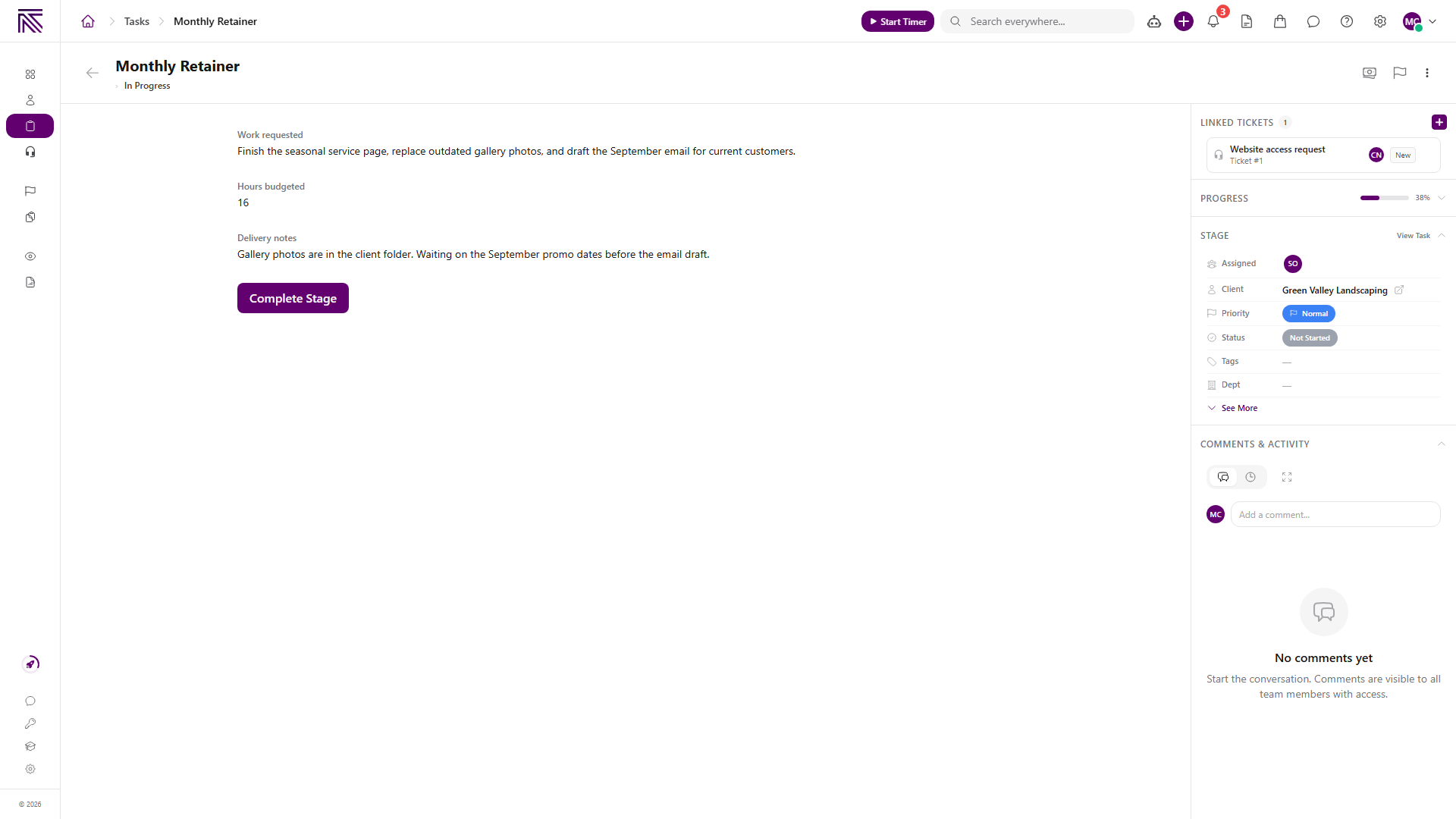
Select the card to open the ticket.
Create and link a ticket from the task
Section titled “Create and link a ticket from the task”- Under Linked Tickets, select the plus button.
- Select Create new ticket.
- Complete the ticket form and create the ticket.
- Confirm the new ticket card appears under Linked Tickets.
If ticket creation succeeds but linking fails, AgencyTitan keeps the new ticket and tells you to use Link existing ticket to attach it.
The menu can also show AI suggest when ticket suggestions are enabled for your workspace. Use it only when that option is visible.
Open the task from the ticket
Section titled “Open the task from the ticket”The ticket’s details panel shows the relationship under Linked Tasks. A linked-task card includes the task name, process type, and status.
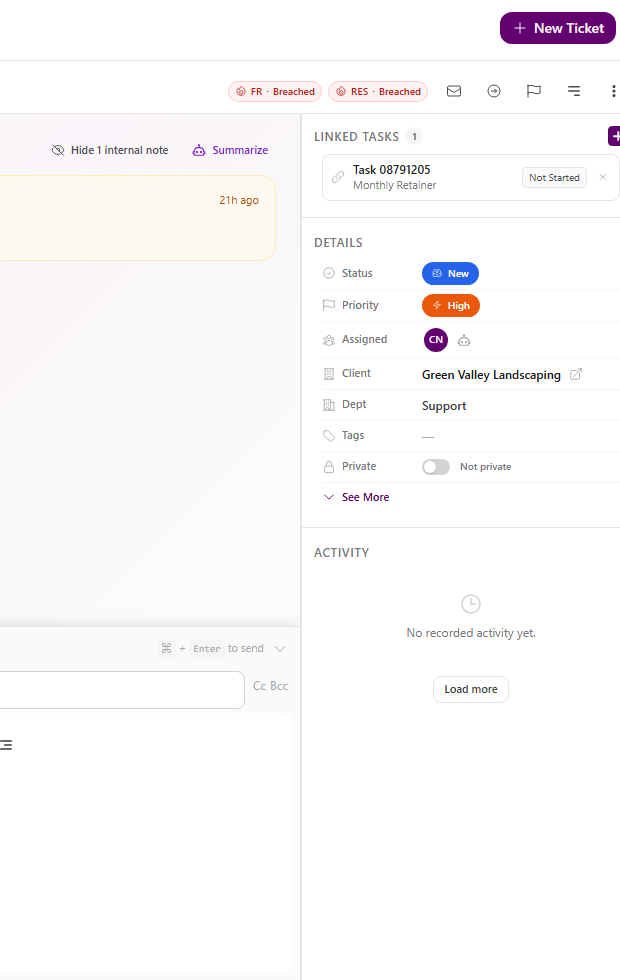
Select the card to return to the task.
Unlink the records
Section titled “Unlink the records”- Select the unlink X on the linked ticket or task card.
- Review the confirmation.
- Select Unlink.
Unlinking removes only the relationship. It does not delete the task or ticket.
Expected result
Section titled “Expected result”- The ticket appears under Linked Tickets on the task.
- The task appears under Linked Tasks on the ticket.
- Selecting either card opens the related record.
- Unlinking removes both cross-references without deleting either record.
Troubleshooting
Section titled “Troubleshooting”| Symptom | Likely cause | What to do |
|---|---|---|
| Linked Tickets or its plus button is missing | The sidebar layout hides it or you cannot manage links | Ask the process owner to review the sidebar and confirm your access |
| Ticket is missing from the picker | Search or ticket access excludes it | Search by subject or number and confirm you can open the ticket |
| New ticket was created but not linked | Ticket creation succeeded and the link request failed | Choose Link existing ticket and select the new ticket |
| Linked task is not visible on the ticket | The details panel is closed or the link did not save | Open the details panel and retry the link |
| Record disappears after unlinking | Only its card was removed from the other record | Find the task in Tasks or the ticket in Tickets |
Related articles
 Concept Tasks & processes overview Understand how task types, process definitions, stages, fields, layouts, assignments, and tasks fit together.
  How-to Work a task Work the current stage, update task details, complete required fields, and move a task through its configured stages.
  How-to Find and work tickets Use inboxes, quick filters, statuses, departments, client filters, and search to find and open tickets in the Tickets inbox.
  How-to Assign and update a ticket Change ticket status, priority, assignees, client, department, tags, privacy, and inbox from the ticket view.