
Automations overview

Automations watch for an event or schedule, then run the connected steps you define. Use them to notify your team, update records, communicate with clients, call an integration, or branch and wait without repeating the work manually.
Open Settings, then Automations ( /settings/automations (opens in new tab) ) to see the automation list.
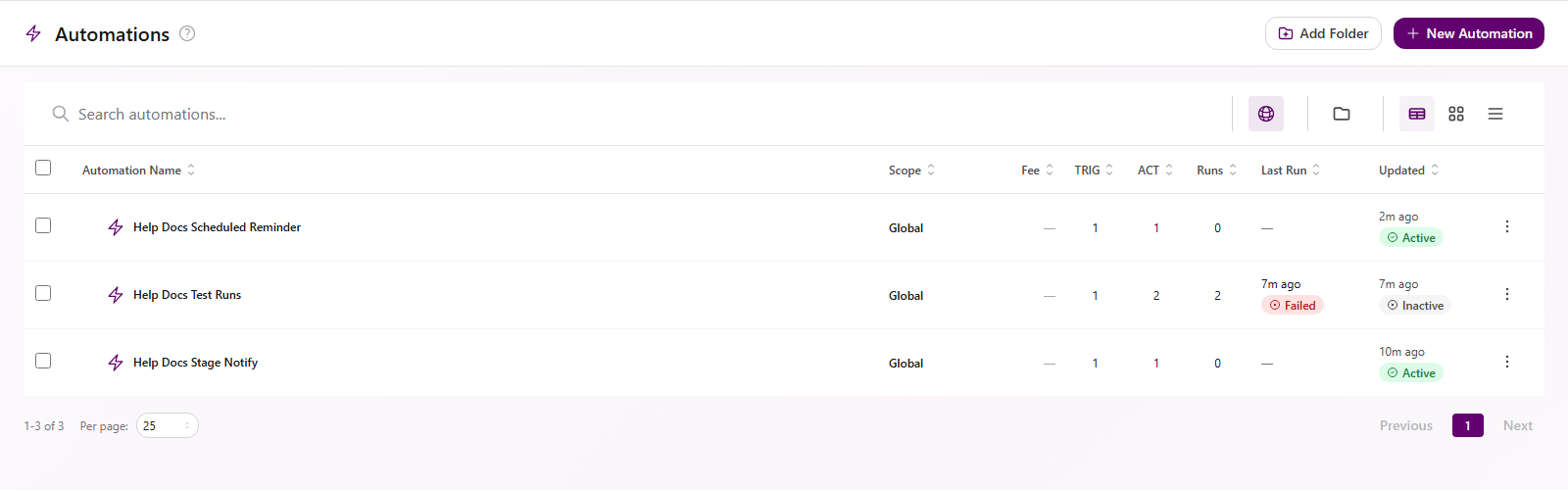
How an automation fits together
Section titled “How an automation fits together”| Part | What it does |
|---|---|
| Trigger | Starts the automation when an event occurs, a schedule arrives, a webhook is received, or a button or link is selected. |
| Condition | Narrows a trigger or creates a branch by comparing fields and values. |
| Action | Performs work such as sending a notification, updating a task, creating a ticket, or calling an integration. |
| Connection | Sets the path and order between nodes. A node’s position on the canvas does not set execution order by itself. |
| Run | One recorded execution. The Activity tab shows its status, timing, steps, and any surfaced error. |
Understand states
Section titled “Understand states”Publishing and activation are separate controls.
| State | Meaning |
|---|---|
| Draft | The current builder graph has not been published. A new automation starts here. |
| Published | A saved version is available to run. |
| Active | The published version can accept new trigger events. |
| Inactive | New trigger events do not start runs. Existing activity remains available. |
| Draft (v# is Active) | You are editing a draft while the named published version remains active. Publish the draft when it is ready to replace that version. |
Publishing does not automatically make an automation active. After publishing, use the toggle beside the state badge when it should begin accepting triggers.
Guides in this category
Section titled “Guides in this category” How-to Create an automation Create a draft, choose a real trigger, and add conditions with All or Any matching.
  Guide Add actions and steps Configure actions, connect nodes, and use the connection path to control order.
  Guide Publish and manage automations Publish, activate, edit a live automation safely, restore a version as a draft, duplicate, or delete.
  Guide View run history Filter Activity, open an execution timeline, inspect errors, and re-run when appropriate.
  Recipes Common automation recipes Build a task-stage notification and a weekday scheduled reminder.
  Troubleshooting Troubleshoot automations Use builder validation and real run details to find why an automation did not publish or run successfully.
 Related articles
 Concept Core Concepts Learn the AgencyTitan product model: workspace, clients, tasks, tickets, escalations, chat, SOPs, training, views, automations, programs, and settings.
  Concept Tasks & processes overview Understand how task types, process definitions, stages, fields, layouts, assignments, and tasks fit together.
  Concept Tickets overview How the Tickets inbox, ticket conversations, assignment, statuses, inboxes, routing rules, and reply templates fit together.