
Work with client notes and folders

Use Notes on a client record for context your team should keep with that client. The page combines a searchable note list, optional folders, and a rich-text editor.
Who this is for
Section titled “Who this is for”Agency team members who record or review client context. Viewing notes requires note access. Creating a note or folder requires permission to create notes.
Before you begin
Section titled “Before you begin”- Open the correct client from Clients ( /clients (opens in new tab) ).
- Decide whether the note belongs in a folder or needs a type, tag, pin, favorite, or attachment.
Open client notes
Section titled “Open client notes”- Open a client record.
- Select Notes in the client navigation ( /clients/:id/notes (opens in new tab) ).
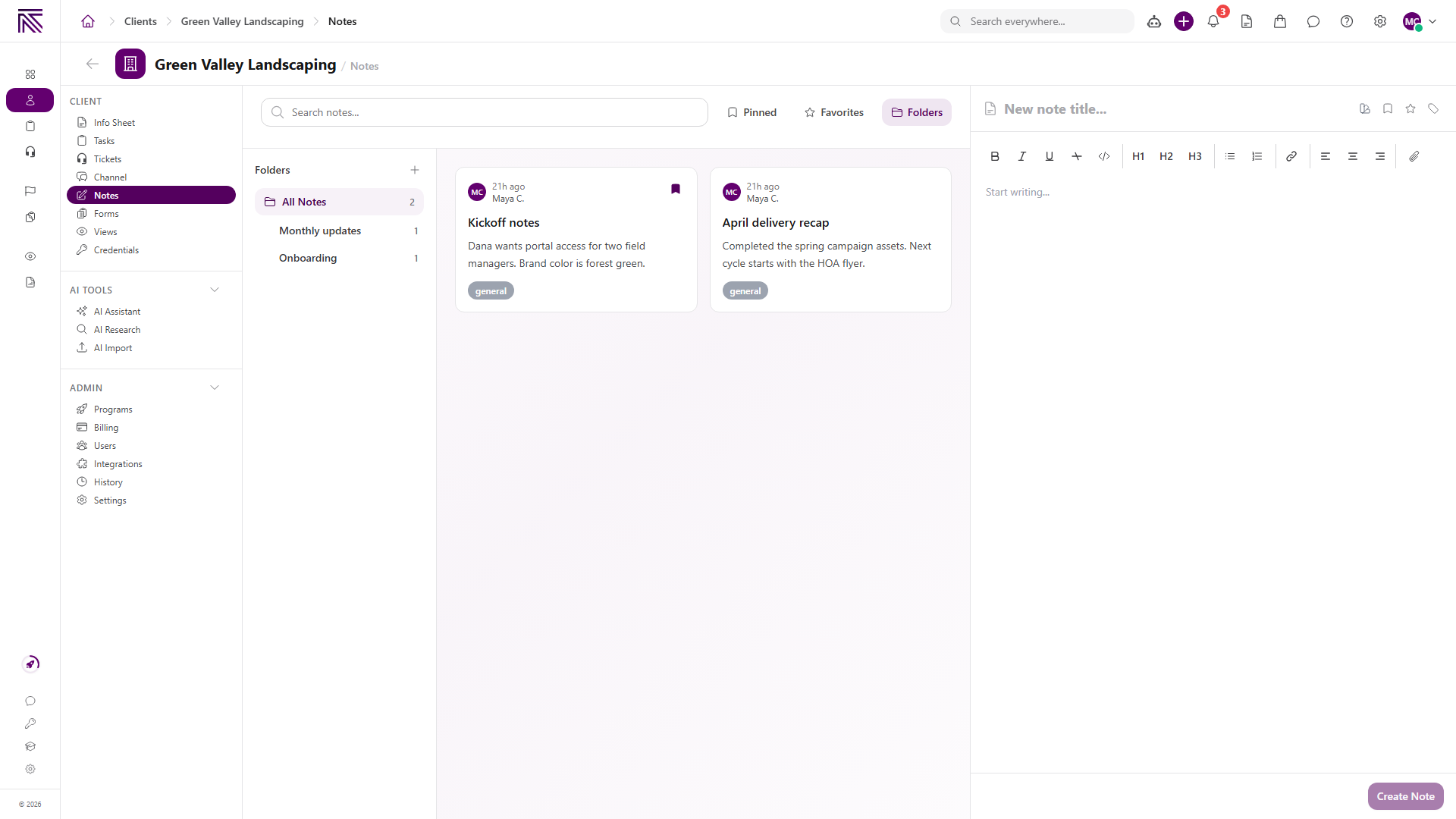
The left side contains search, filters, folders, and note cards. The right side is the note editor.
Create a note
Section titled “Create a note”- Enter a title in New note title….
- Write the note under Start writing….
- Use the editor toolbar for headings, lists, links, alignment, or an attachment when needed.
- Optionally choose a note type, pin the note, mark it as a favorite, or add tags from the controls beside the title.
- Select Create Note.
The page shows Start typing on the right to create your first note when the client has no notes yet.
Find and filter notes
Section titled “Find and filter notes”- Enter text in Search notes… to narrow the note cards.
- Select Pinned to show only pinned notes.
- Select Favorites to show only favorite notes.
- Use a note type filter when your workspace has note types configured.
- Select a folder to show the notes inside it.
Create a folder
Section titled “Create a folder”-
Select Folders to open the folder panel.
-
Select the plus button beside Folders.
-
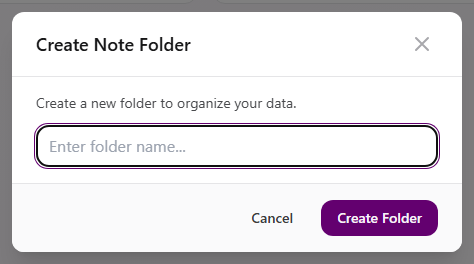
Enter a folder name.
-
Select Create Folder.
View full size
Select All Notes to remove the folder filter. Open a note’s actions when you need to move that note into a folder.
Expected result
Section titled “Expected result”- A created note appears in the note cards and opens in the editor.
- Search and filters narrow the visible notes without changing them.
- A created folder appears under Folders and can be used to organize notes for this client.
Troubleshooting
Section titled “Troubleshooting”| Symptom | Likely cause | What to do |
|---|---|---|
| Notes is missing | You cannot view notes or the client | Ask a workspace owner to review your client and note permissions |
| Create Note is unavailable | Title or content is missing, or you cannot create notes | Enter the note content and ask a workspace owner to review Create Notes |
| Folder panel is hidden | Folders is off | Select Folders above the note list |
| A note is missing | Search, folder, type, pinned, or favorite filter excludes it | Clear search and filters, then select All Notes |
| Attachment does not appear | Upload is incomplete or the file could not be accepted | Wait for the upload to finish, or remove the file and try again |
Related articles
 Concept Clients overview Understand the Clients list, client record anatomy, Client Profile templates, Info Sheets, notes, programs, tasks, and tickets.
  How-to Create a client Add a client record from the Clients list using Client Name, Client Profile, and any agency-required fields.
  How-to Find a client's tasks and tickets Open the Tasks and Tickets views on a client record, understand what appears there, and continue work in the main task or ticket area.