
Find tasks

Use the Tasks sidebar for common queues and process-specific views. Search and filters narrow the current result without changing the tasks.
Who this is for
Section titled “Who this is for”Agency team members who plan, triage, or deliver task work. Requires View Processes. If your access is limited to assigned tasks, only those tasks appear.
Before you begin
Section titled “Before you begin”- Sign in to the agency workspace that owns the task.
- Identify a useful detail, such as the Process, Assignee, Current Stage, Status, or date.
Start with a queue or process
Section titled “Start with a queue or process”Open Tasks ( /tasks/active (opens in new tab) ), then choose the narrowest useful starting point.
| View | Use it to find |
|---|---|
| Active | Work that is currently active. |
| Past due | Work beyond its due date. |
| All | Active and completed work. |
| Unassigned | Work without an assignee. |
| Assigned to me | Work assigned to you. |
| Created by me | Tasks you created. |
| Watched by me | Tasks you watch. |
| My departments | Work associated with your departments. |
Select a process name below the queues to see only tasks created from that process definition. Saved process views appear beneath their process when available.
Search and filter
Section titled “Search and filter”-
Use the search box above the result to match task information in the current view.
-
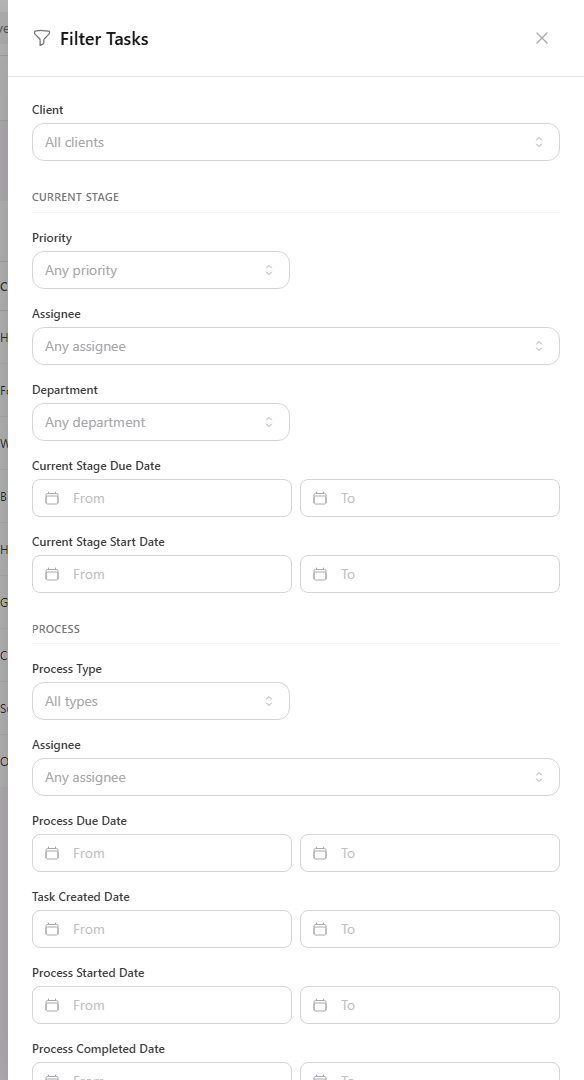
Select Filters.
-
Under Current Stage, filter by Status, Assignee, Department, Current Stage, or the current stage’s start and due dates.
-
Under Process, filter by the task’s overall Status, Assignee, or dates.
-
Close the drawer to review the result.
View full size
Current-stage filters answer questions such as which Intake tasks are unassigned. Process filters apply to the task as a whole. Clear filters from the drawer when you want to broaden the result.
Use table or board view
Section titled “Use table or board view”- Select Table View for rows, sortable columns, and dense comparison.
- Select Board View for cards arranged into columns.
- Use View By to group the current result. Current Stage places each task under its current stage.
- Use Sort to change the order.
- Use Columns or Fields to control the values shown when those controls are available.
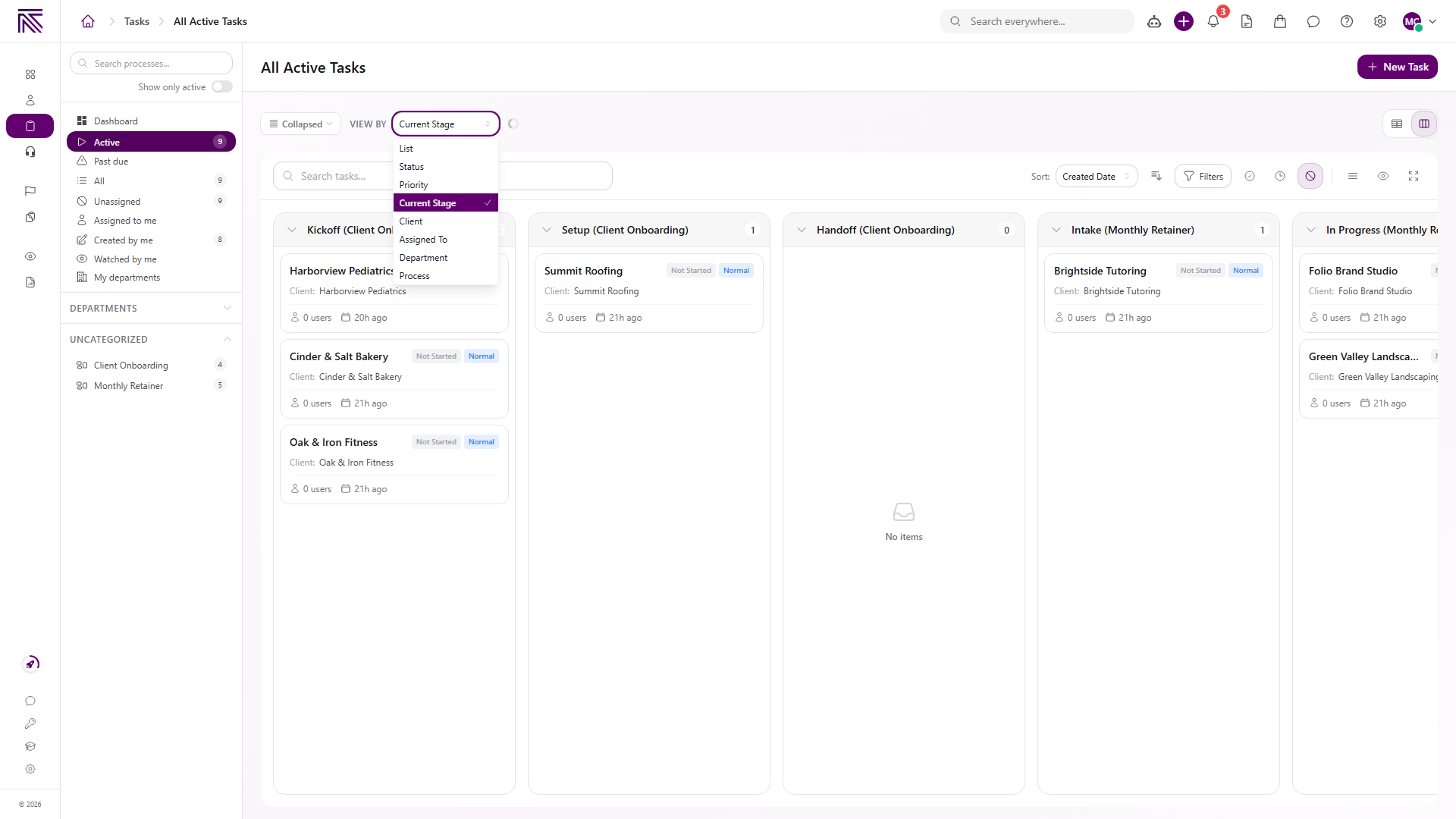
Search, filters, and the table or board choice work together. If the result is unexpectedly empty, clear search and filters before changing queues.
Expected result
Section titled “Expected result”- The selected queue or process limits the starting set of tasks.
- Search and filters narrow that set by stage, assignee, status, dates, or other available values.
- Table and board views present the same current result in different layouts.
- Opening a row or card takes you to the task.
Troubleshooting
Section titled “Troubleshooting”| Symptom | Likely cause | What to do |
|---|---|---|
| Task is missing | The current queue, process, search, or filters exclude it | Open All, clear search and filters, then look again |
| Process is missing from the sidebar | Show only active is on, the process is inactive, or access excludes it | Turn off the switch or confirm your process access |
| Filter returns no tasks | The combined conditions are too narrow | Clear filters and add them back one at a time |
| Assigned task is missing from Assigned to me | The assignment is at a different level or belongs to another user | Open the process view and filter the current-stage and process assignees separately |
| Saved view is missing | It belongs to another process or is unavailable to you | Open the correct process and confirm access to the view |
Related articles
 Concept Tasks & processes overview Understand how task types, process definitions, stages, fields, layouts, assignments, and tasks fit together.
  How-to Create a task Create a task from the Tasks view by choosing a process type, completing required fields, and assigning its current stage.
  How-to Work a task Work the current stage, update task details, complete required fields, and move a task through its configured stages.
  Concept Task fields and layouts Understand where task field values are stored, where fields appear, and how to edit task and stage information.