
Publish and manage automations

Publish a validated draft to create a runnable version. Then use the separate Active toggle to decide whether that version can accept new triggers.
Who this is for
Section titled “Who this is for”Agency team members who release and maintain automations. Requires View Automations and Edit Automations.
Before you begin
Section titled “Before you begin”- Save every node and select Save Draft.
- Reload the builder and confirm the graph, connections, conditions, and action settings persisted.
- Resolve every toolbar issue.
- Review actions for real side effects and use approved test records or destinations.
Publish and activate
Section titled “Publish and activate”- Open the draft from Settings, then Automations ( /settings/automations (opens in new tab) ).
- In Builder, select the publish control in the toolbar.
- Confirm the header shows Published.
- Turn on the toggle beside Published when the automation should accept new triggers.
- Confirm the toggle reads Active.
Publishing alone leaves a newly published automation inactive. There is no separate Unpublish control in the current interface. To stop new runs, turn the automation Inactive; its published versions and activity remain available.
Edit an active automation
Section titled “Edit an active automation”When you edit an active published version, AgencyTitan creates a draft while the published version remains active. The builder shows Draft (v# is Active).
- Make and save changes in the draft.
- Test the draft with safe data when appropriate.
- Select Publish automation to replace the active version with the draft.
- Confirm Published and Active appear together.
If the changes should not go live, leave the draft unpublished. The active version continues handling triggers.
Use version history
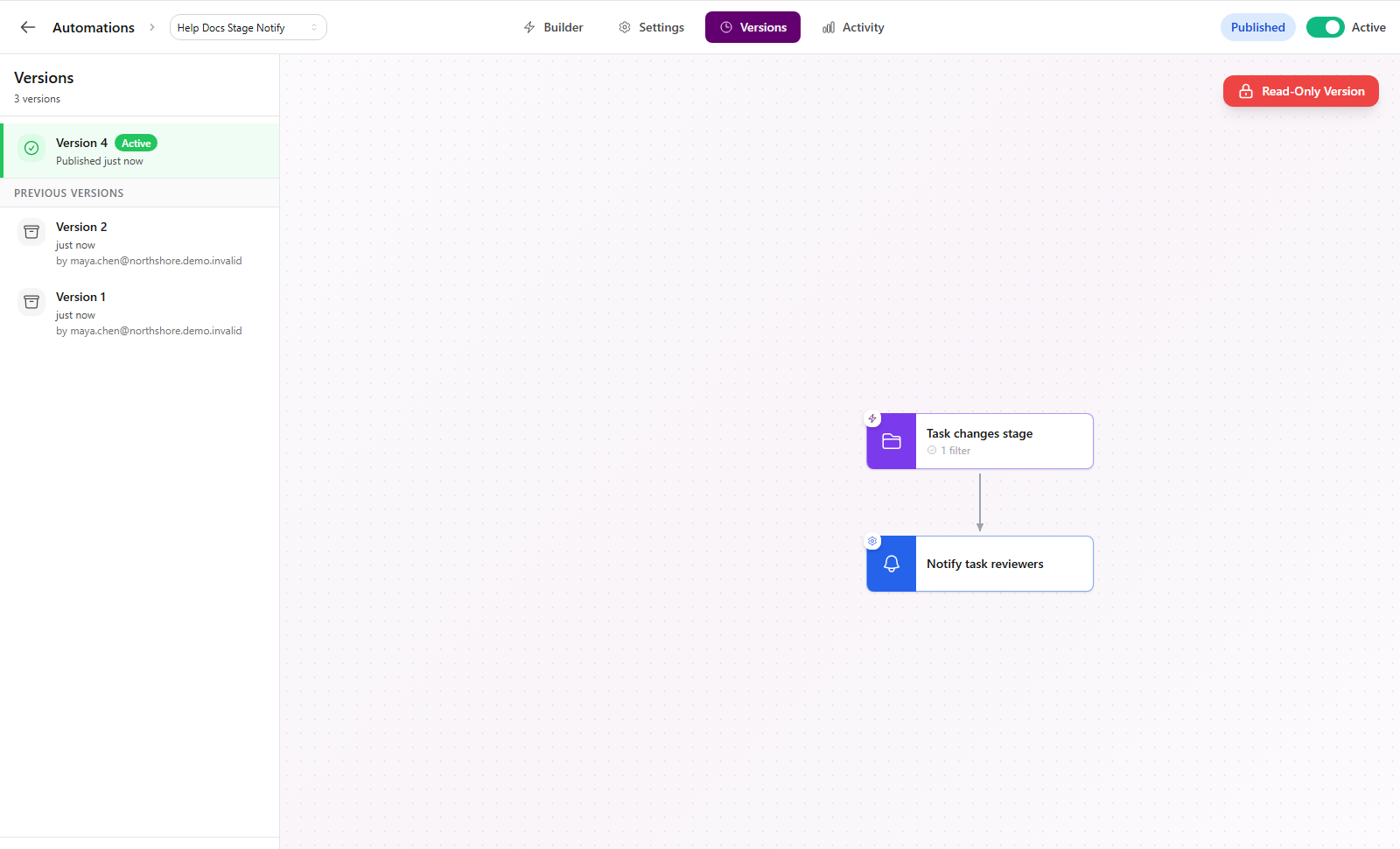
Section titled “Use version history”Open Versions to review published versions. An active version is marked Active. Select an older read-only version to inspect its nodes.
Use Restore as Draft to copy that version into a new editable draft. Restoring does not replace the active version until you publish the restored draft.
Change automation settings
Section titled “Change automation settings”Open Settings inside the automation to manage:
- Name and description
- Timezone and an optional execution window
- Retry failed actions and maximum retry attempts
- Completion notifications and their channels
- Failure notifications and recipients
These settings apply to execution behavior, not the visual order of nodes.
Organize, duplicate, or delete
Section titled “Organize, duplicate, or delete”From the automation list:
- Select Add Folder to organize automations.
- Open More actions, then Duplicate to start from a copy.
- Use Move to Folder to reorganize an automation.
- Use Delete and type
DELETEto confirm removal.
The confirmation explains that deleting removes the automation configuration and nodes, removes its execution history, and disables its triggers. This action cannot be undone from the automation list.
Expected result
Section titled “Expected result”- A released automation shows Published in its detail header.
- An automation that can accept triggers shows Active.
- Draft edits do not replace the active version until published.
- Versions lists the current version and any retained previous versions.
Troubleshooting
Section titled “Troubleshooting”| Symptom | Likely cause | What to do |
|---|---|---|
| Publish control is disabled | Builder validation found an issue | Open the issue counter and resolve every item |
| Automation is published but does not run | It is still inactive | Turn on the toggle and confirm Active |
| Header says Draft (v# is Active) | You have unpublished edits | Finish and publish the draft, or leave it unpublished while the active version continues |
| Older version is read-only | Published versions cannot be edited directly | Select Restore as Draft, edit the draft, then publish |
| Activation is blocked | The draft or published graph is invalid | Open the displayed validation message and repair the graph before activating |
| Automation should stop immediately | It is active | Turn the toggle off and confirm Inactive |
Related articles
 Concept Automations overview Understand where automations live, how triggers and connected steps work, and how draft, published, active, and inactive states differ.
  How-to View automation run history Use the Activity tab to filter automation runs, open an execution timeline, inspect step errors, copy identifiers, and re-run safely.
  How-to Common automation recipes Build a task-stage notification and a weekday scheduled reminder with the triggers and actions available in AgencyTitan.
  Troubleshoot Troubleshoot automations Diagnose validation issues, missing runs, inactive automations, and failed steps using the builder and Activity execution details.